Tutorials
Synthetic Users UX testing tutorial
Learn how to run UX testing with synthetic users, from setting up tasks and target URLs to generating participants and launching sessions. Watch your synthetic users work through tasks, replay their sessions, and ask follow-up questions to understand their thinking.
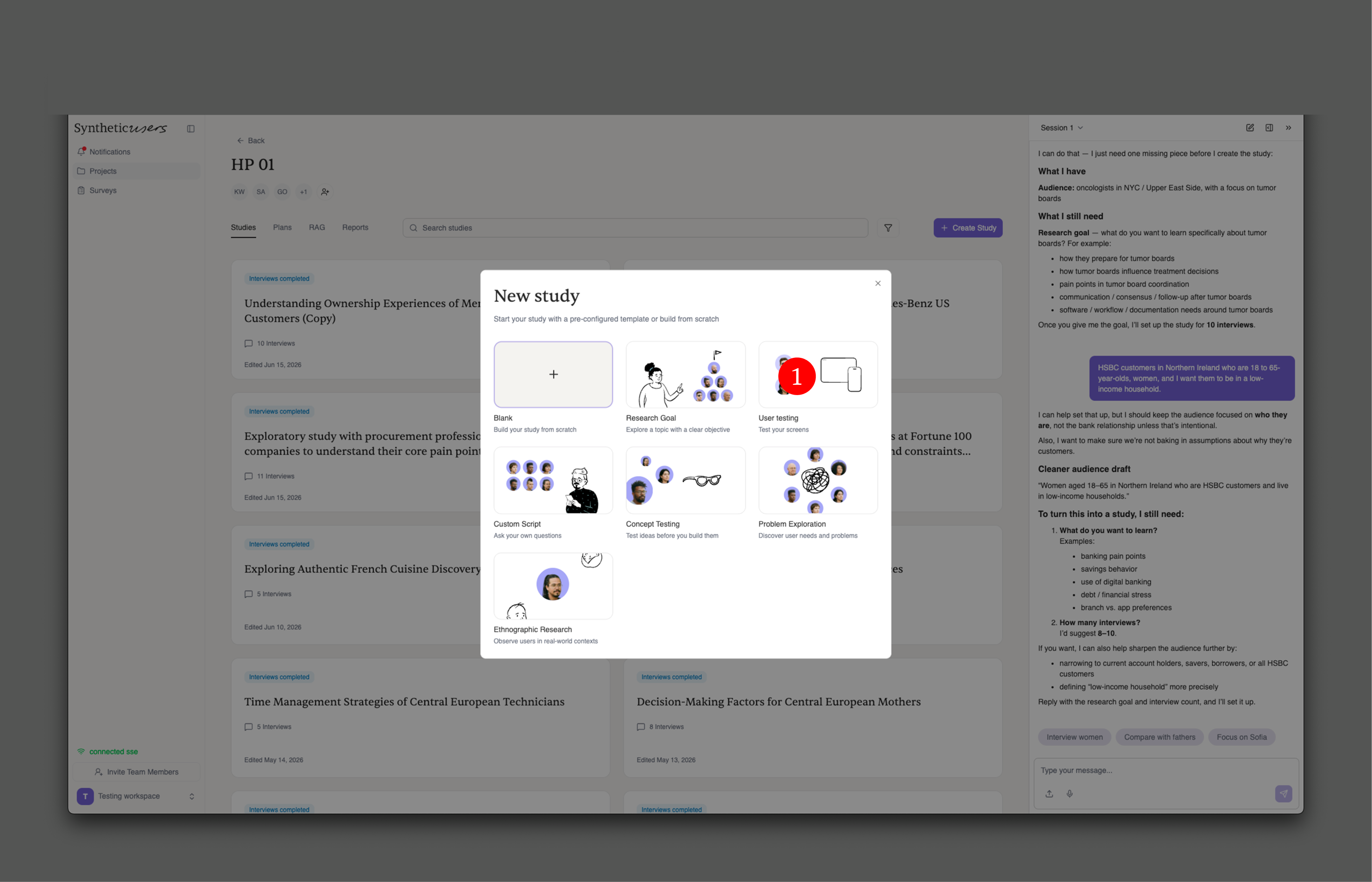
Access UX testing via the new study button within your project, and there you will find the user testing type of study (1).
A template for the study will be automatically created. The template has:
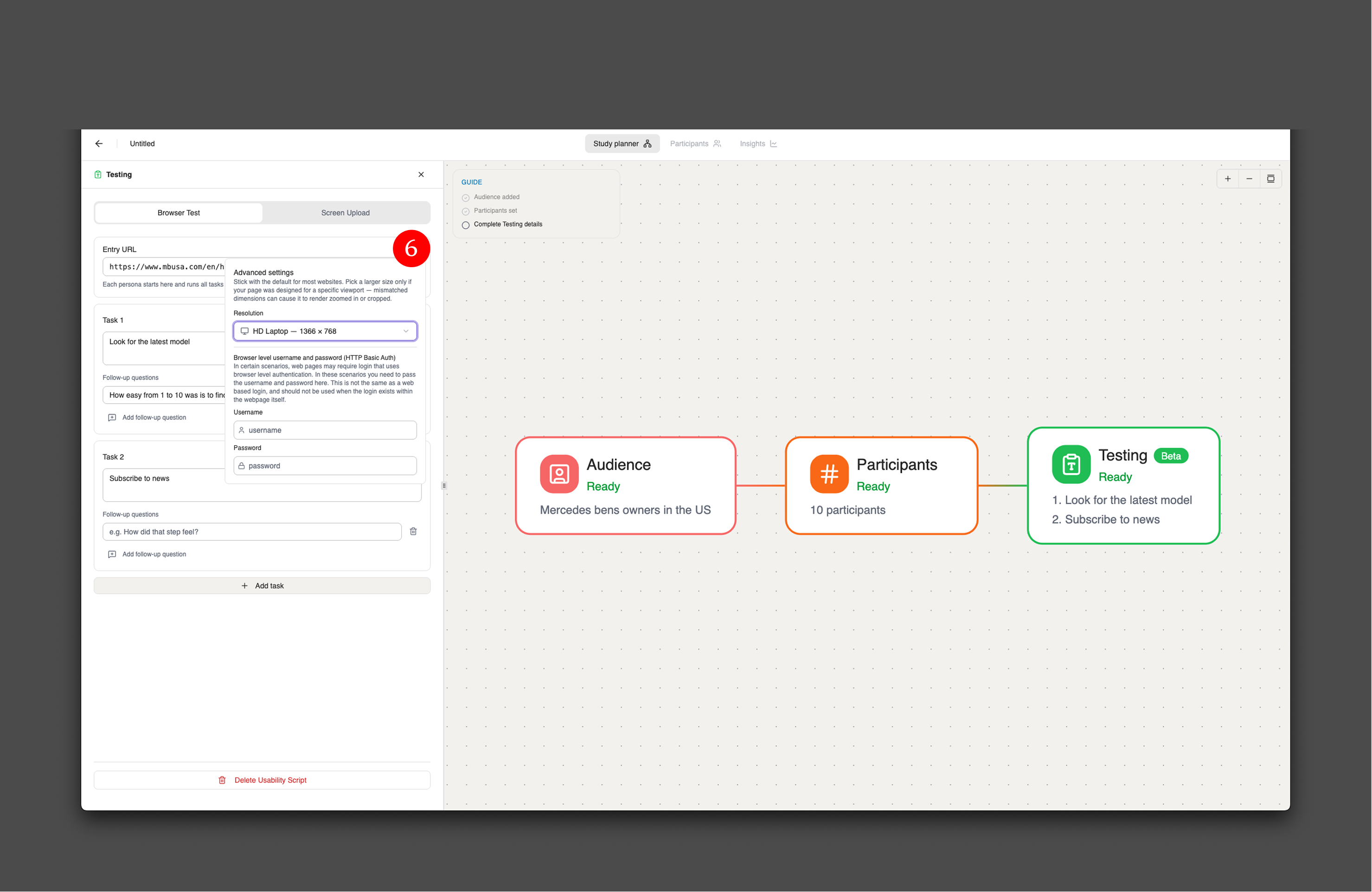
2 - Testing: when you select testing, you get a set of parameters that you can change, so the URL of the website or application that you are testing
3 - The different tasks that you want your synthetic users to undertake
4 - Usually, with every task, there's a set of follow-up questions that you can ask
5 - If you don't have a specific URL that you want to point your synthetic users at, you can always upload screenshots
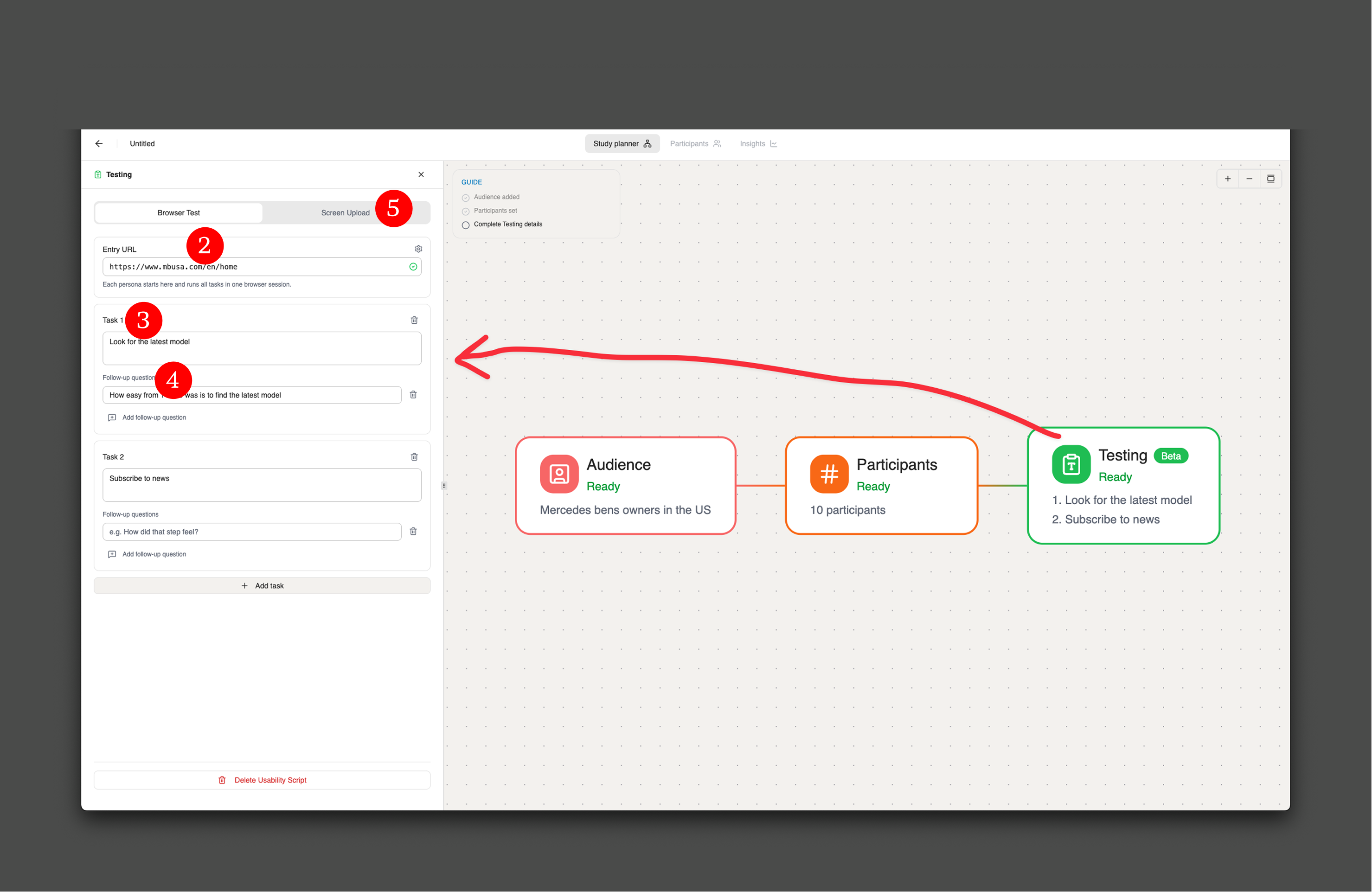
6 - Certain websites are password protected, and so you have a little settings wheel on the top right. This allows you to bypass those password restrictions.
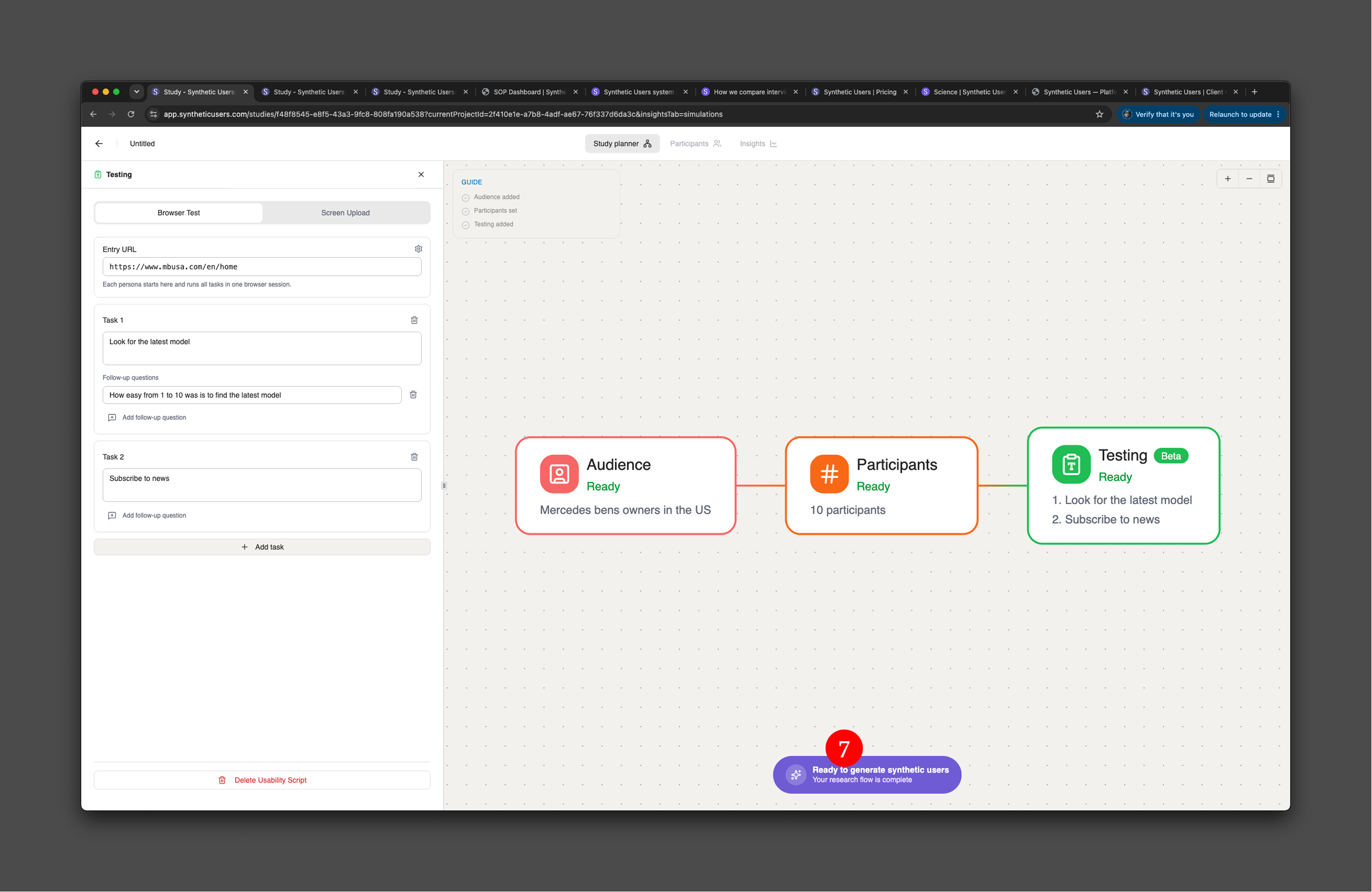
Once you have all the nodes ready: Audience, Participants, and Testing, the "Generate your Synthetic Users" call to action automatically appears. That's point number 7.
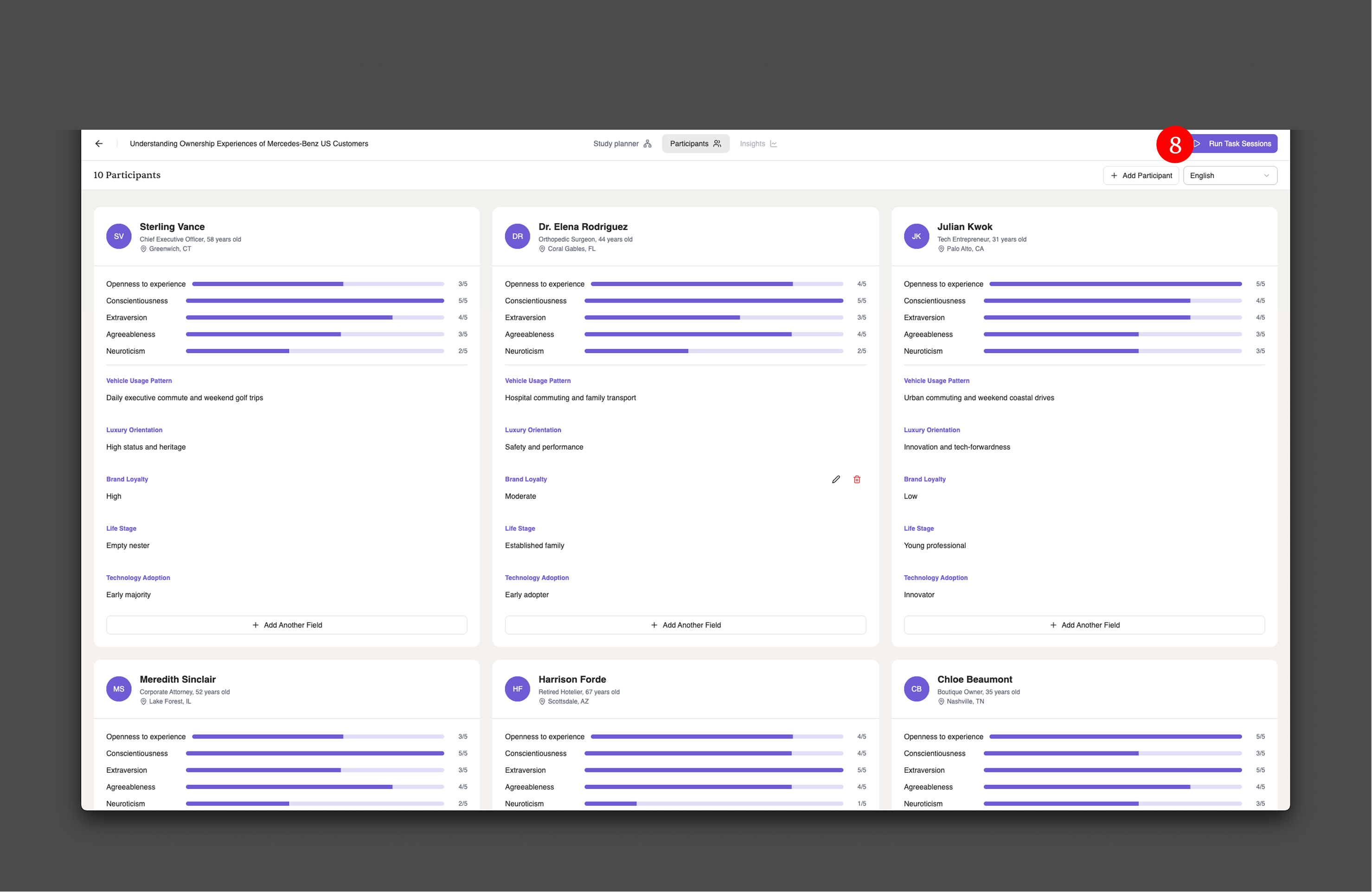
After generating your synthetic users, see below, you are able to run the task sessions (that's point number 8).
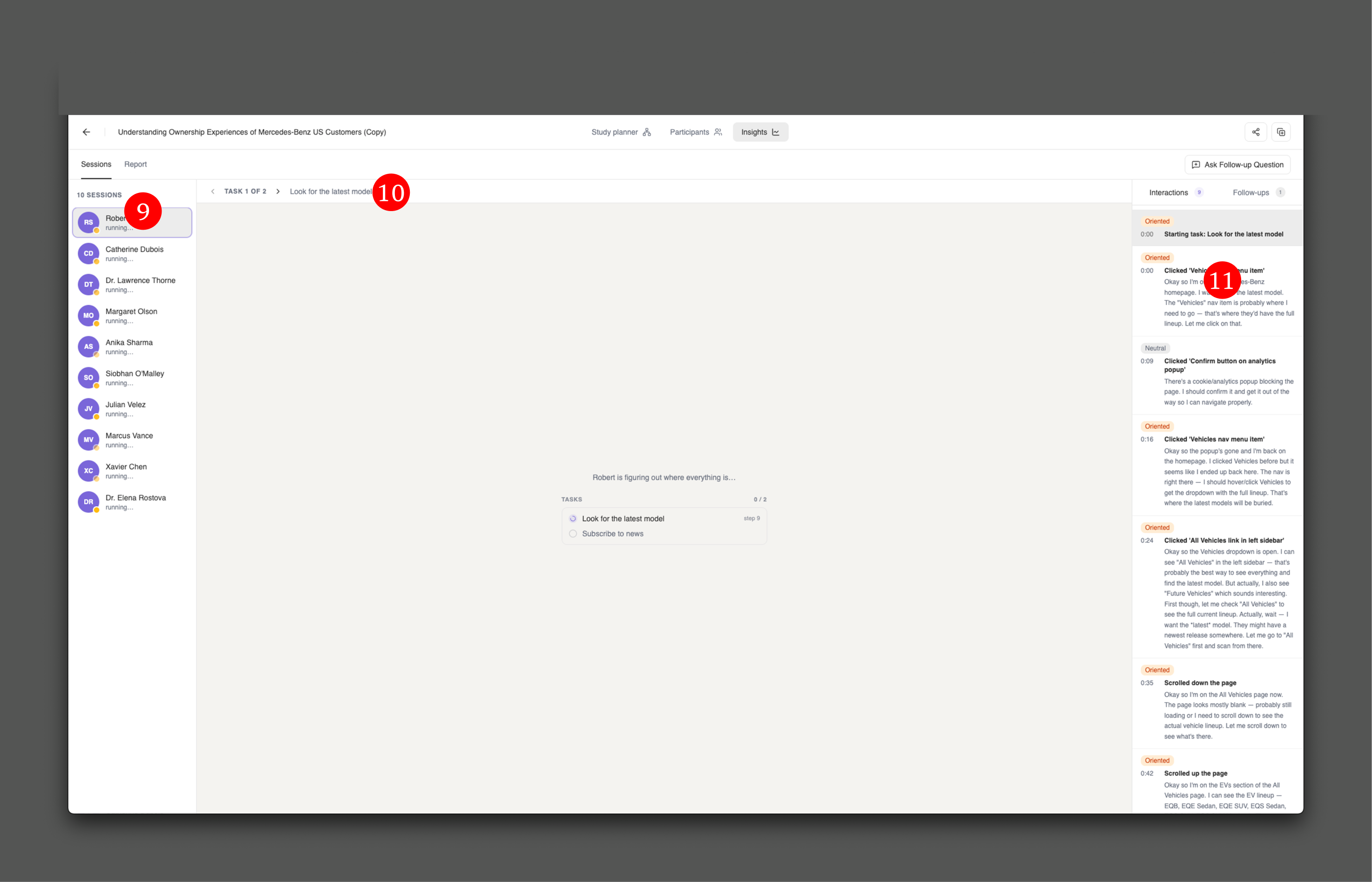
The task sessions or user sessions are running, as you can see below.
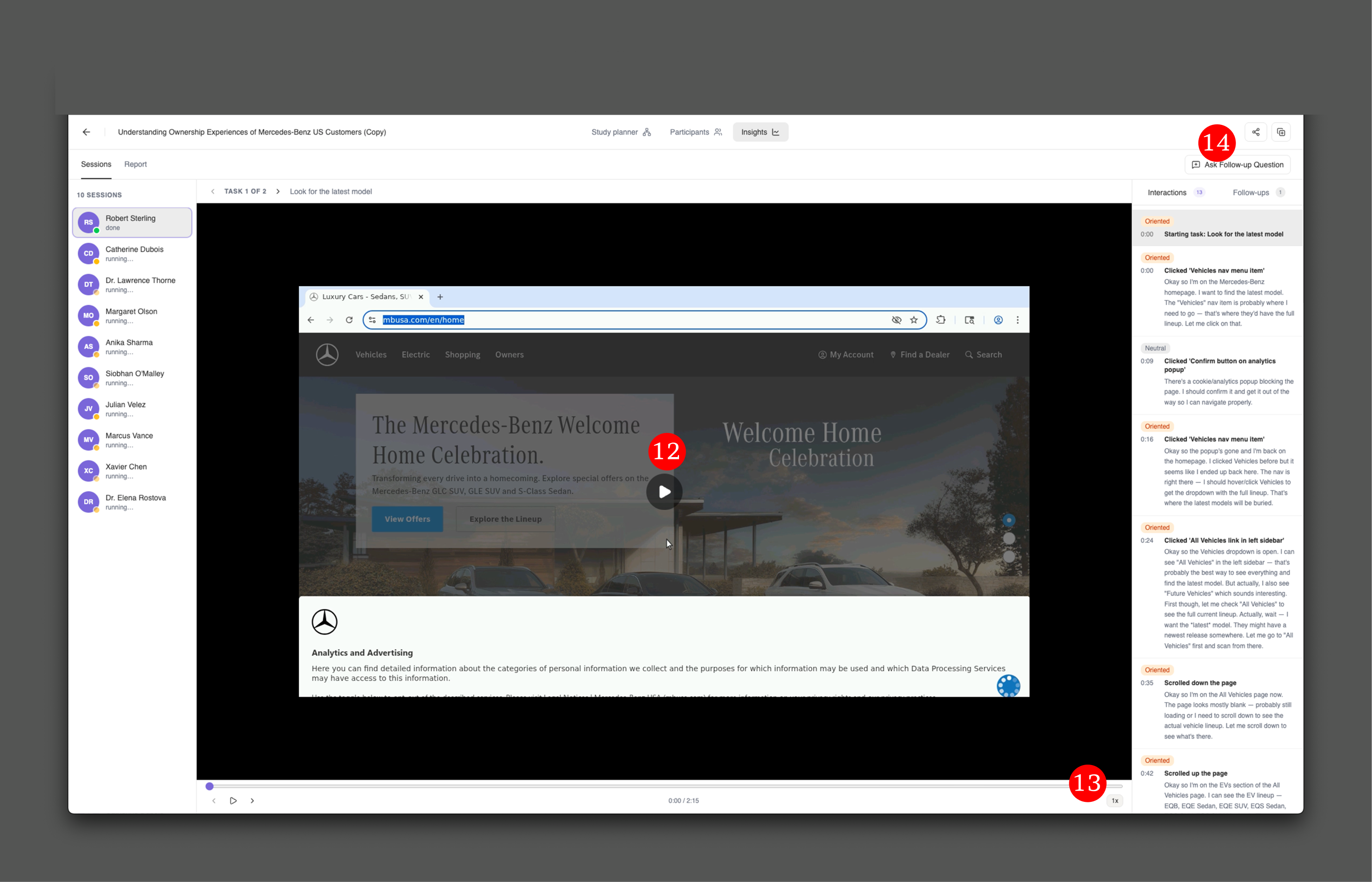
9 - You have on your left-hand side, a column with all your synthetic users.
10 - The different tasks that the synthetic users will undergo.
11 - On the right, you will find a column with all the interactions, how they feel and their train of thought.
Should the interviews have any issues, you will find a retry button smack in the middle of the screen.
below you can see the first synthetic user has already finished its set of tasks. You can replay its session on the center console that's number 12. Remember that you can accelerate the playback speed at number 13, and you're always free to ask follow-up questions, and that's number 14