
Tutorials
Connect the Synthetic Users MCP to Claude
Drive Synthetic Users straight from Claude Desktop over the Model Context Protocol. Generate a workspace key, drop it into Claude's config, and run interviews, read reports, and explore insights without leaving your chat. This takes about five minutes to set up.
Before you start
You'll need the Synthetic Users web app (with a workspace you can administer) and the Claude Desktop app installed on the same computer. The screenshots show macOS, Windows is identical apart from the file explorer and save shortcut.
Part 1
1 - Generate your key in Synthetic Users
Open your workspace settings
In the Synthetic Users app, click your workspace name in the bottom-left corner, then choose Settings from the menu.
Synthetic Users projects page with the workspace name highlighted in the bottom-left
The workspace switcher sits at the bottom of the left sidebar.
2 - Open Connect to MCP and generate a key
In the settings sidebar under Workspace, select Connect to MCP. Then click Generate API key.
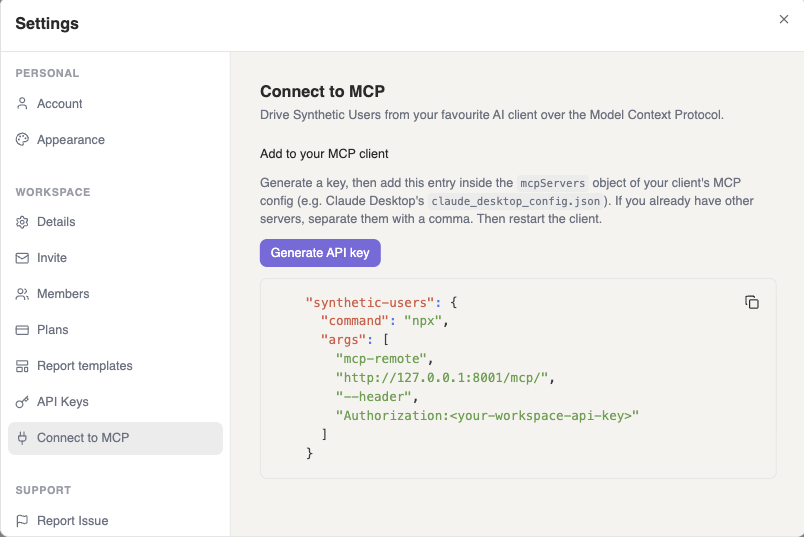
Connect to MCP settings page with the Generate API key button
Connect to MCP · Generate API key.
3 - Copy the config snippet
Your key is now baked into the snippet below the button. Use the copy icon in the top-right of the box to copy the whole entry, you'll paste it into Claude in Part 2.
Copy it now. The key is shown only once. It scopes access to this workspace, and you can revoke it any time from the API Keys tab. Treat it like a password.
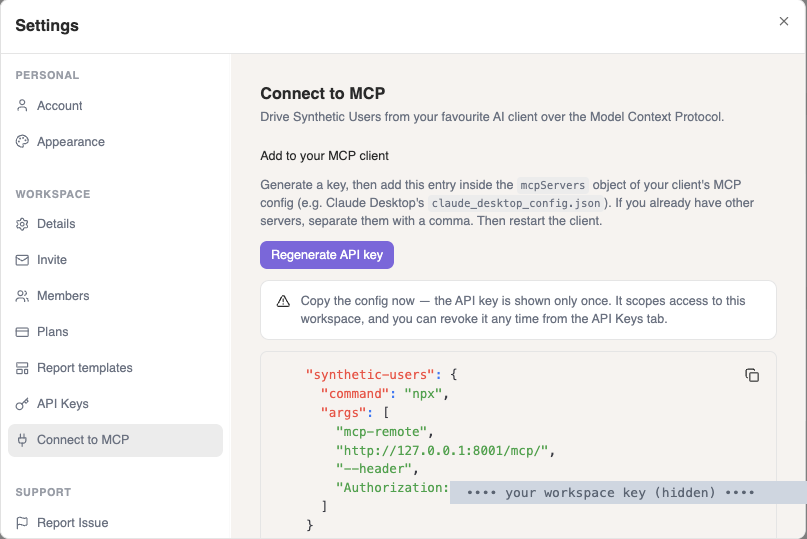
The MCP config snippet with the API key filled in and a copy button
The key is hidden here, yours will appear in full after the colon.
Part 2
Add the server in Claude Desktop
4 - Open Claude's settings
Switch to Claude Desktop. Click your name in the bottom-left corner and open Settings.
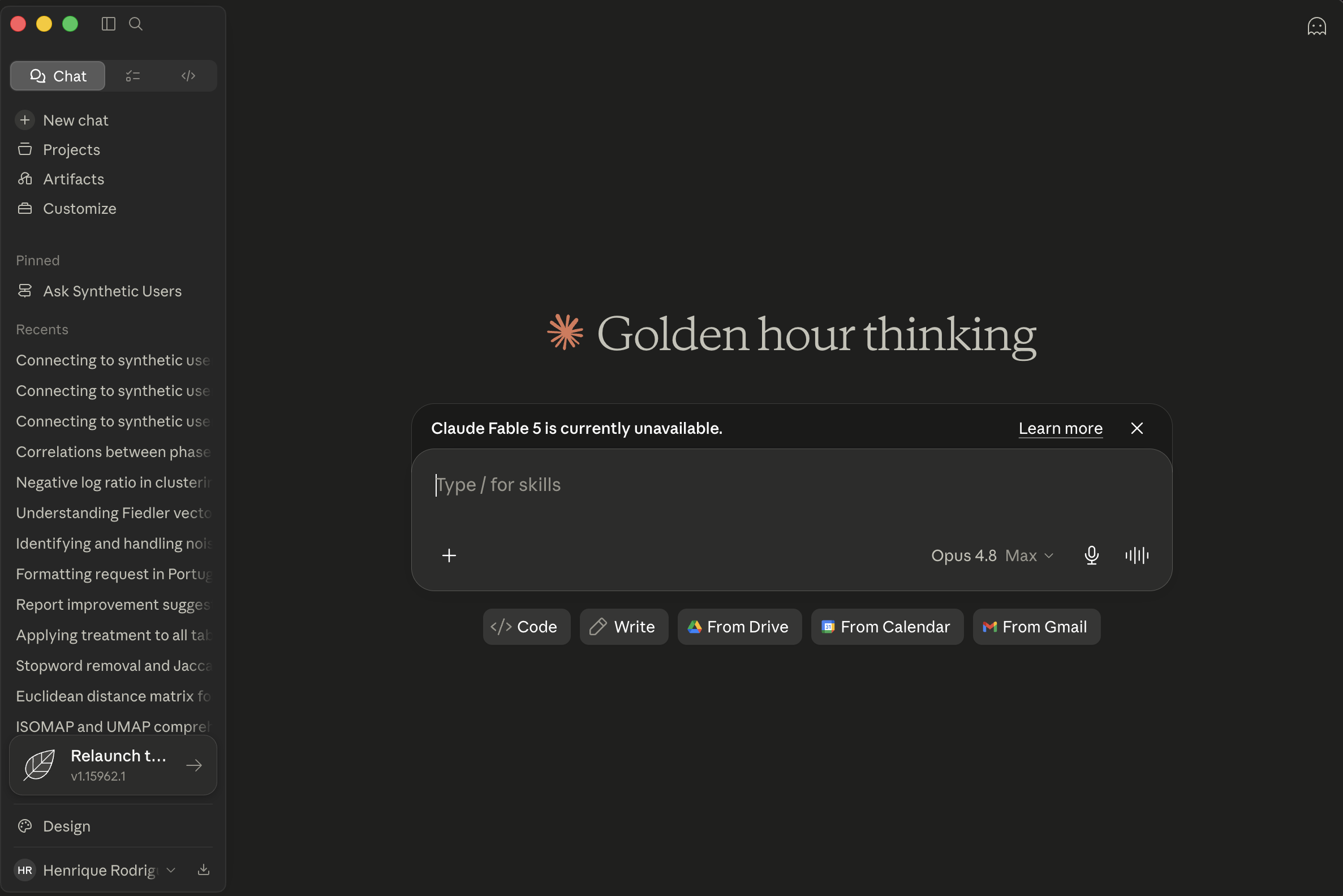
The Claude Desktop home screen
Your account menu lives in the bottom-left of Claude Desktop.
5 - Go to Developer and click Edit Config
In the settings sidebar choose Developer. Under Local MCP servers, click Edit Config.
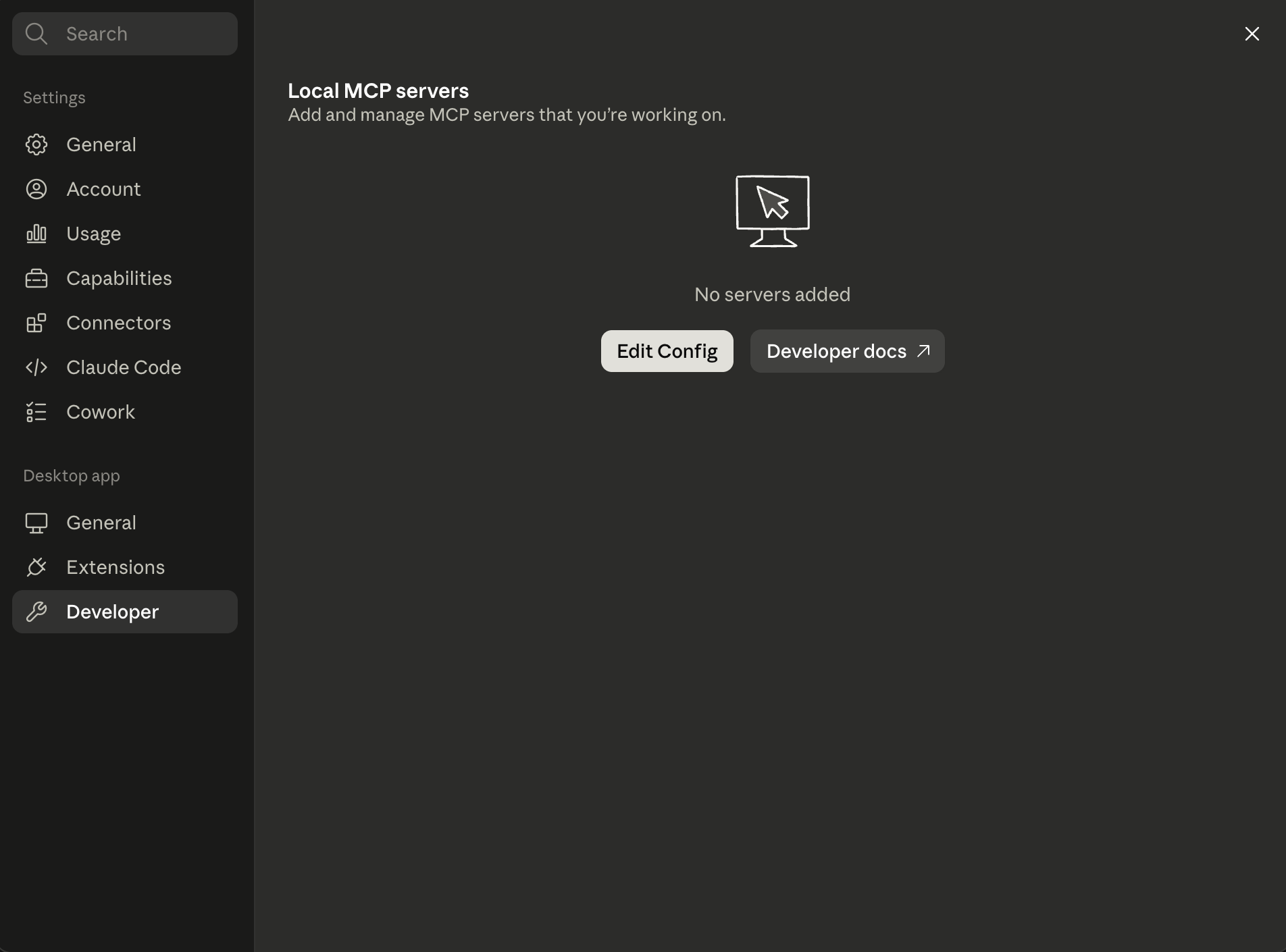
Claude Developer settings showing Local MCP servers and the Edit Config button
Settings · Developer · Edit Config.
6 - Open claude_desktop_config.json
Edit Config opens the Claude folder in your file explorer. Open claude_desktop_config.json in any text editor (double-click it, or right-click → Open With).
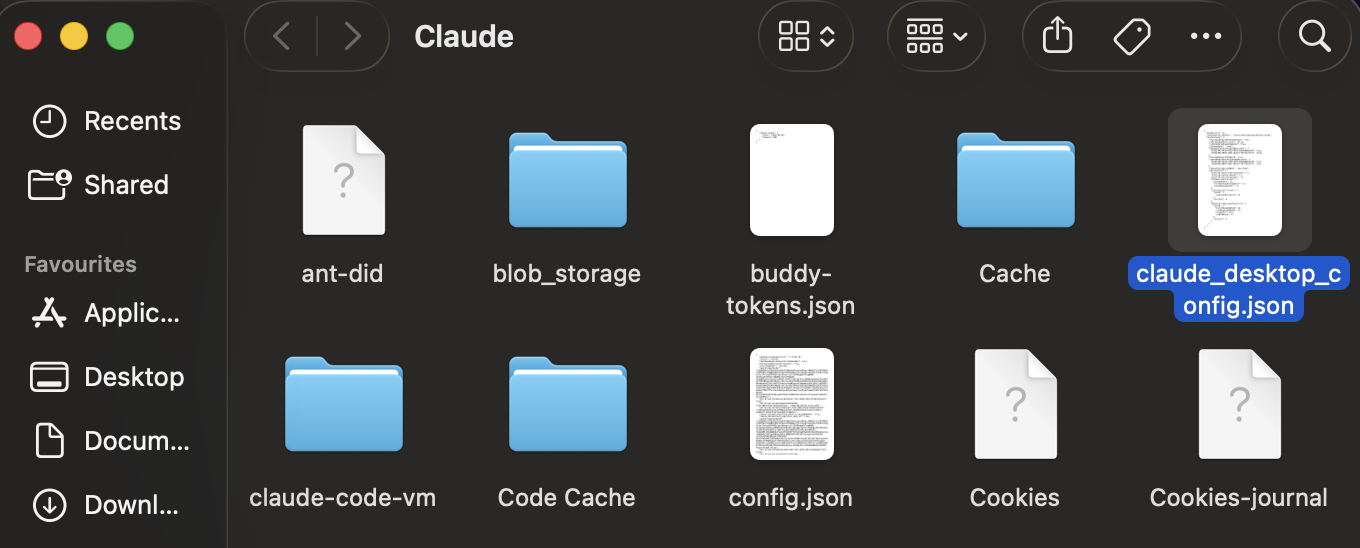
File explorer showing the Claude folder with claude_desktop_config.json selected
The file you want is claude_desktop_config.json.
7 - Paste inside “mcpServers” and save
Find the "mcpServers" entry and paste your copied snippet inside its curly braces, so it looks like the example below.
{ "mcpServers": { "synthetic-users": { "command": "npx", "args": [ "mcp-remote", "http://127.0.0.1:8001/mcp/", "--header", "Authorization:<your-workspace-api-key>" ] } } }
Already have other servers? Just add the snippet alongside them inside mcpServers, separating each entry with a comma.
Don't forget to save. Press ⌘ S on Mac or Ctrl S on Windows, whatever your editor uses to save.

The config file open in a text editor with the mcpServers object
Paste your snippet between the braces of “mcpServers”.
8 - Close everything and restart Claude
Close the text editor and the file explorer window, then fully quit Claude and reopen it. Claude only picks up the new server on a fresh launch.
Part 3
Verify it works, and start using it
9 - Confirm the server is running
Go back to Settings · Developer. You should now see synthetic-users listed with a running badge.
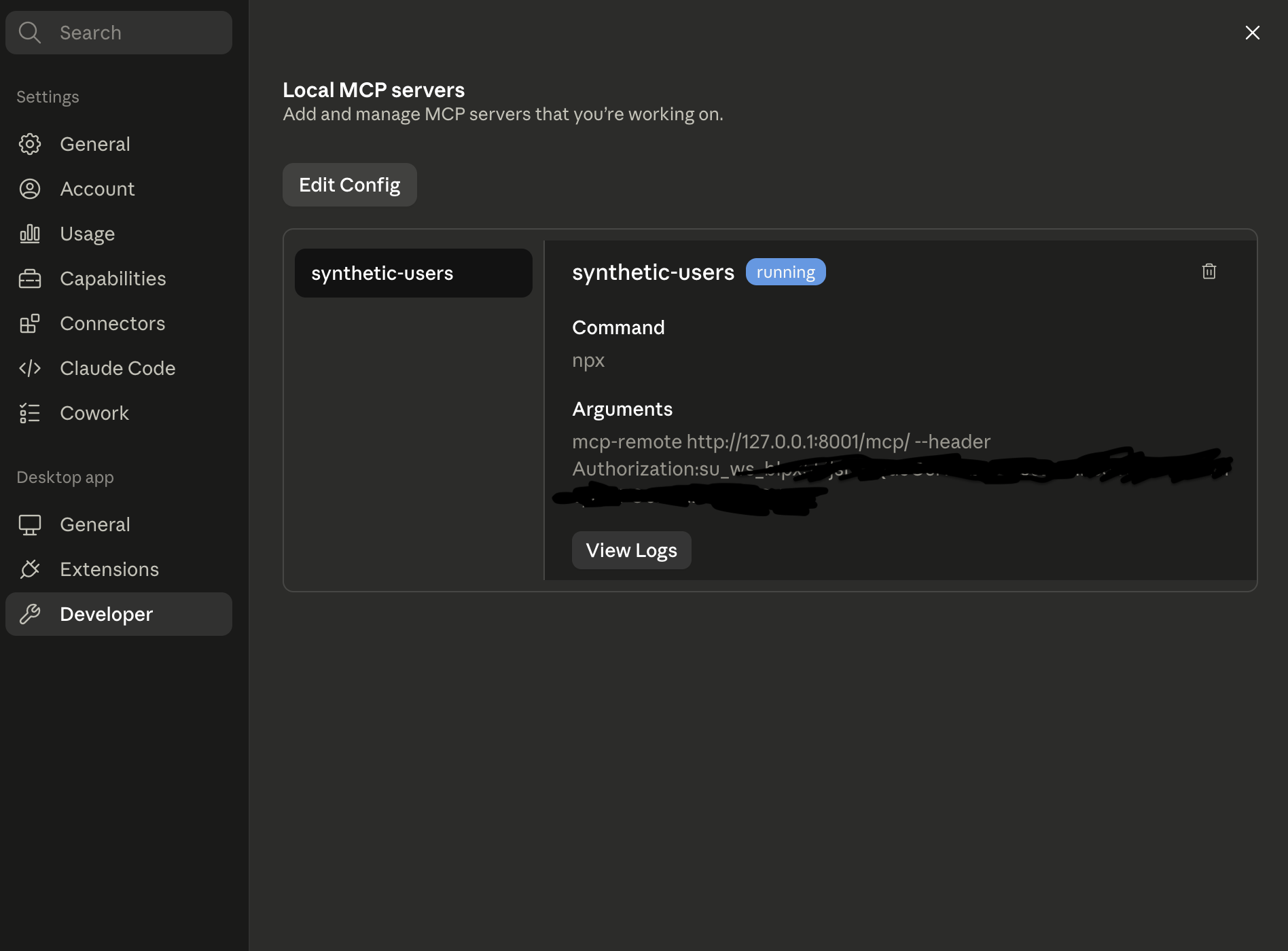
Claude Developer settings showing synthetic-users with a running badge
synthetic-users · running.
Not running? Fully quit Claude (don't just close the window) and reopen it. If it still won't start, retrace the steps above. The most common slips are a missing comma, pasting outside the braces, or forgetting to save.
Just ask Claude to connect
In any chat, ask in plain language, for example, “connect to the synthetic users mcp.” Claude will verify the connection and you're ready to run interviews, pull reports, and explore insights.
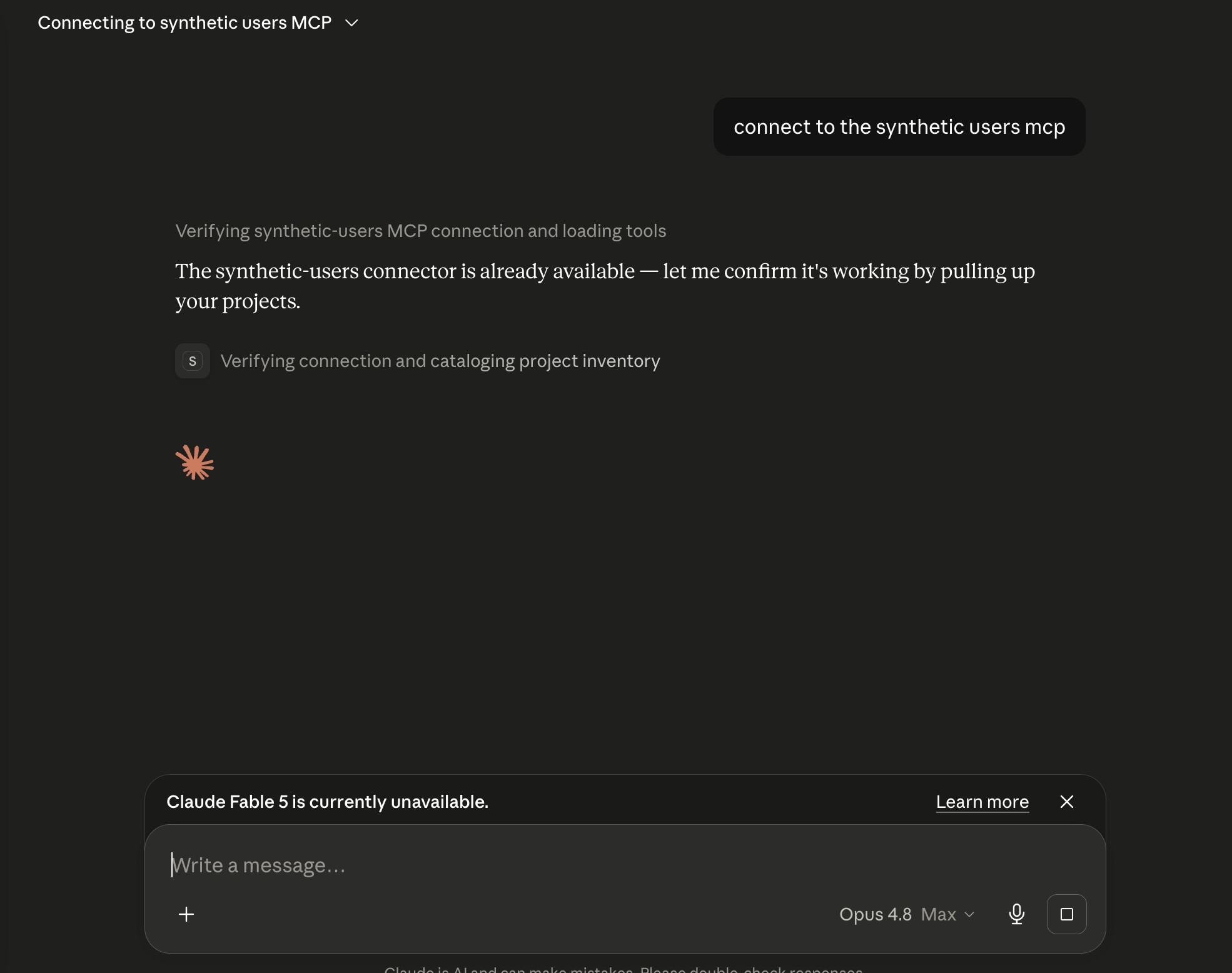
A Claude chat where the user asks to connect to the synthetic users mcp
Ask in plain language and Claude takes it from there.