
Tutorials
Multi-concept scripts: reveal, reorder, and test PDFs
Test documents as concepts, choose the moment each concept is shown, ask participants to look again, and show the concepts in a different order to different people.
Multi-concept studies have two kinds of update. A concept can now be a document. And the custom script works more like a real interview: you choose the moment each concept is shown, participants look at it again when you ask them to, and you can show the concepts in a different order to different participants.
Documents
Test a document
A concept can now be a PDF, a slide deck or a Word file of up to 50 pages, alongside images and videos: a brochure, a detail aid, a pitch deck. Drop it into the concept's Media area the same way you would an image.
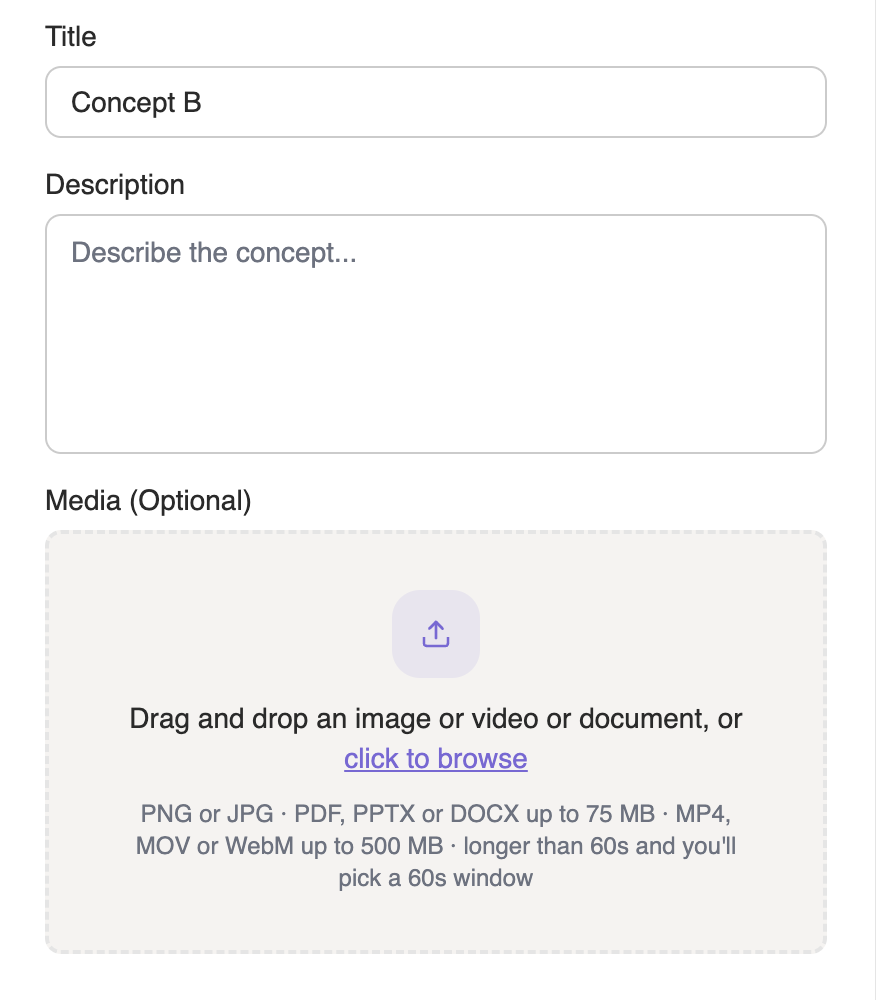
It gets a Document reading row in the script. Place it like any other reveal, as the next section shows.
The script
Choose when each concept is shown
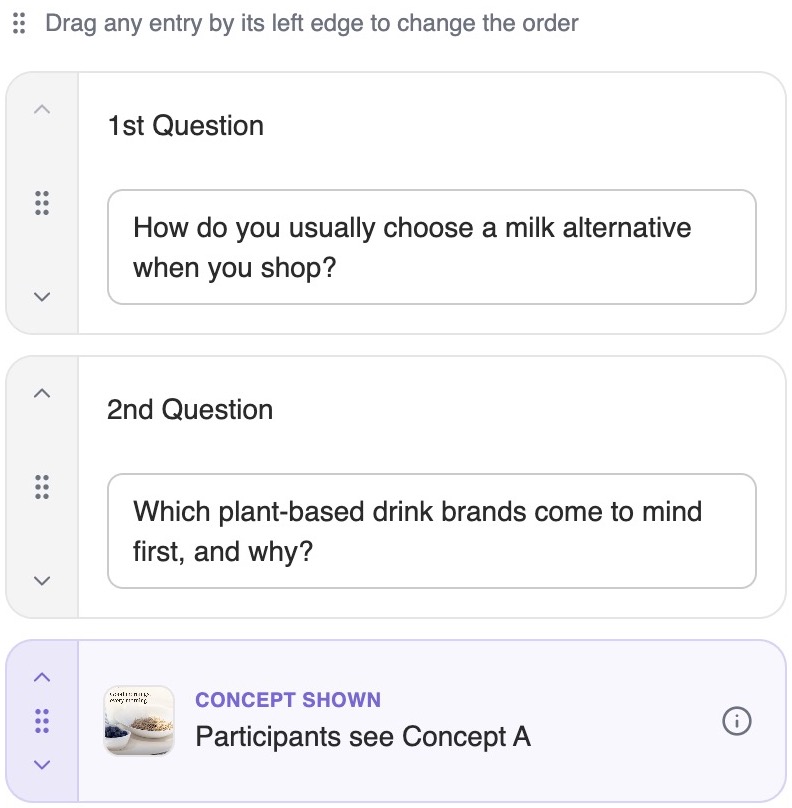
Open the Custom script node. Every concept now has its own row in the script, like Participants see Concept A: the moment participants are shown it. The label on the row says what happens there: Concept shown for an image, Video viewing for a video, Document reading for a document.
- Questions above the row Asked before they have seen the concept. Put your baseline questions here.
- The row Where they see the image, watch the video, or read the document.
- Questions below the row Asked after they have seen it. Put your reactions and comparisons here.
Drag any entry by its left edge to move it, reveal rows included. New reveal rows start at the top of the script, so drag each one down past the questions that should come first.
Questions no longer have a concept picker. Write the concept into the question itself, by what it shows rather than where it comes: "What did you think of the breakfast poster?" still makes sense when the order varies.
Ask them to look again
Real people don't memorise a brochure. When a question needs a detail, ask them to look again, right in the question: "Take another look at page 3 of the brochure. What does it say about where the oats come from?"
- Name the page "Page 8" opens exactly that page.
- Name the concept Say which document or image you mean, so they know where to look.
It works for documents and images. Videos are watched once.
In each transcript, the reveal shows up as its own entry between the questions, and a look back is marked "Participant went back to" the document, with the pages they opened.
Concept order
Show the concepts in a different order
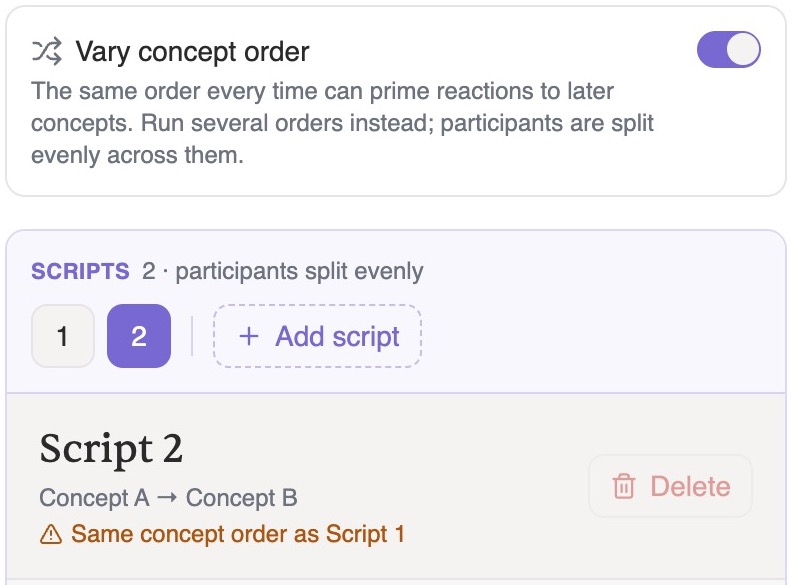
Whatever people see first colours how they see the rest. To take order out of the results, switch on Vary concept order at the top of the script. It is there for comparative studies with two or more concepts.
- Script 1 and Script 2 Your script is copied into two scripts. Click a script's number to edit it, and drag its reveal rows into a different order. Reordering affects that script only.
- Its order The script you're editing shows its order under its name, like "Concept B → Concept A", and warns you if it repeats another script's order.
- Add script and Delete Add script adds another order, starting as a copy of the script you're editing. Delete removes the one you're editing; a study needs at least two.
- An even split Participants are split evenly across the scripts, and every interview records which script it ran.
Each script is a complete script, so a question can move with its concept or stay where it is.
Switching it off asks first: Script 1 becomes the study's only script and the others are deleted.
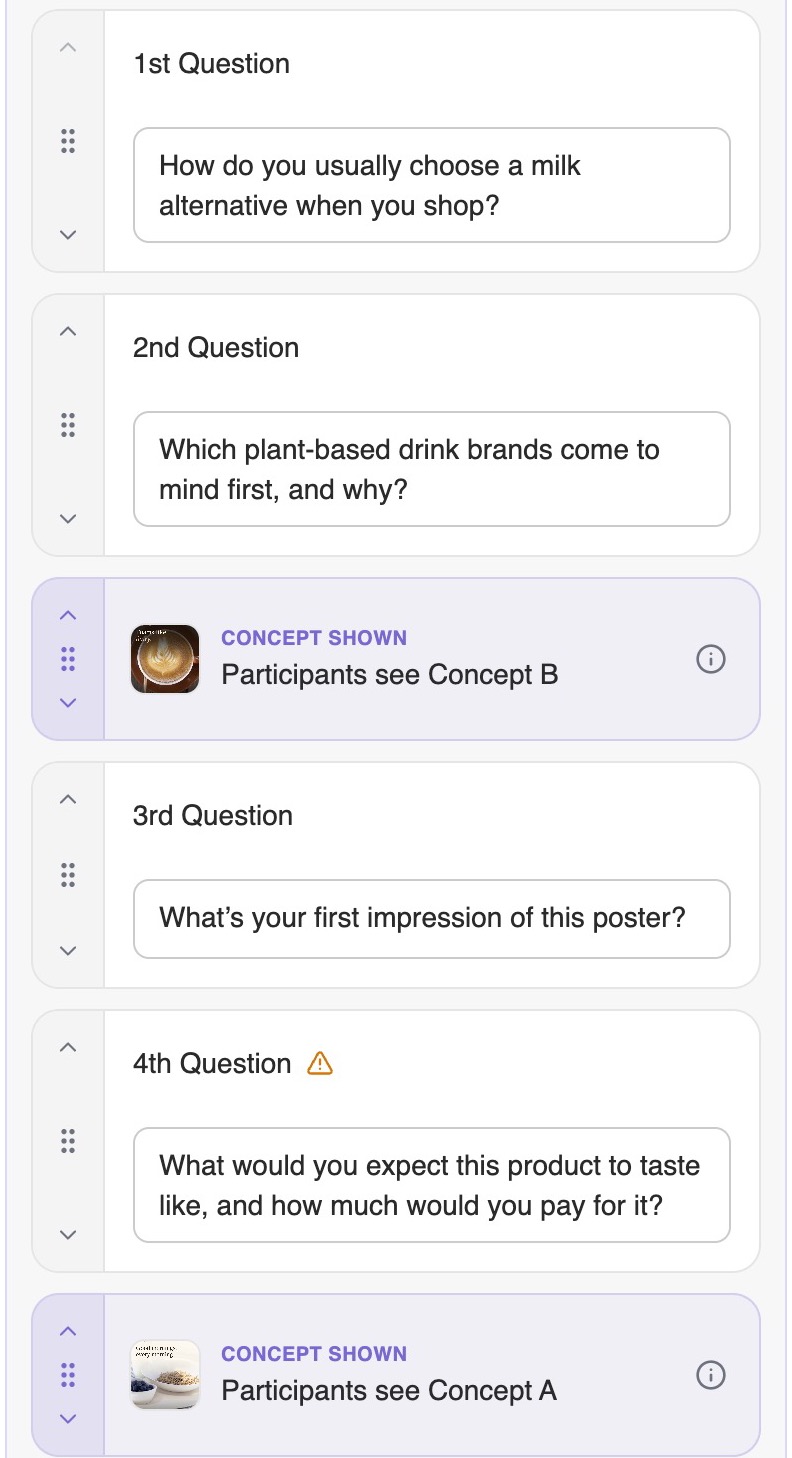
On the canvas, the Script node shows each reveal between the questions, with arrows to page through the scripts.
Why we changed it
Multi-concept scripts had become hard to set up, with a concept picker on every question and no clear moment when a concept was shown. We wanted them simpler, and closer to how you would run the same study with real people: you show each concept at a moment you choose, people answer from what they remember, they look again when you ask, and you rotate the order so the first concept doesn't colour the rest.