
Tutorials
How to run a card sort
See how people group your content and what they would call each group: card sorting, now with synthetic users.
What a card sort is, and when to use it
A card sort asks people to group your content, written as cards, into categories that make sense to them. It shows which things belong together in people's minds, what they would call each group, and where they disagree. Use it before you design or rebuild a menu, a help centre or any structure people browse, or to check whether the categories you have make sense.
The screenshots follow a made-up UK energy supplier, Kestrel Energy, sorting the things its customers come to do, starting from the sections of its current menu. Every screenshot is numbered, and the list under it says what each number points to.
Set it up
- Click Create Study and pick Card sorting, under Evaluate.
- Choose the type of sort: open, closed or hybrid.
- Add your cards, one topic per card, by typing them or with Import / Paste.
- For a closed or hybrid sort, add the categories participants start from.
- Choose an audience and set the number of participants. Up to 20, any audience works; 50 to 300 needs one built in the Audience Crafter.
- Check the settings.
- Generate the participants, then click Run Card Sort.
The three types of sort:
- Open. Participants make and name every group. Use it to learn how people think about your content.
- Closed. Participants use only your categories. Use it to test categories you already have.
- Hybrid. Participants start from your categories and add their own when a card fits none. Use it to check your categories and find what's missing.
Card sorts work best with 15 to 60 cards. A study takes up to 20 participants, or 50 to 300 where large studies are on for your account.
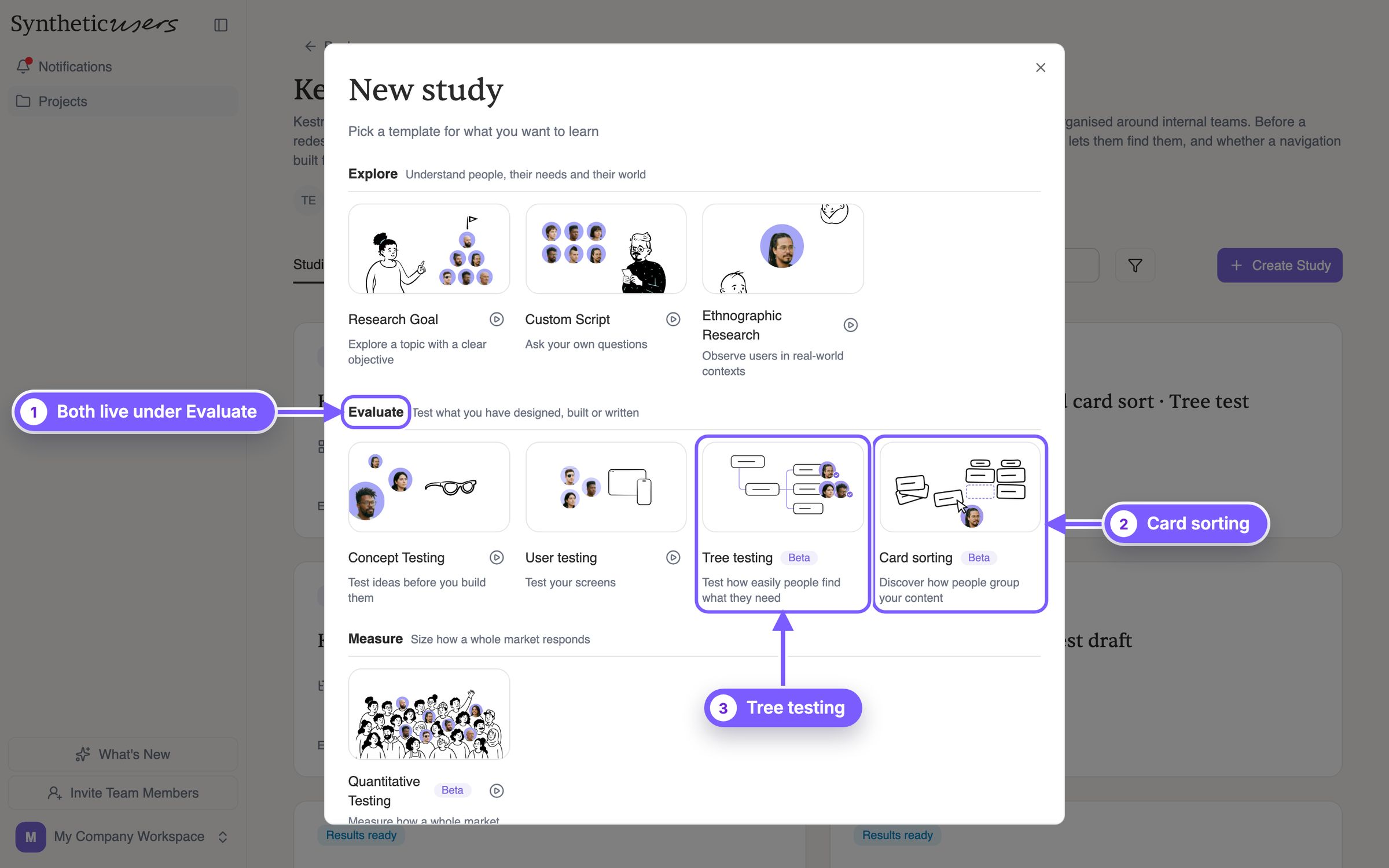
- 1Both live under Evaluate. Evaluate holds the templates that test something you have designed, built or written. Card sorting and Tree testing are both there, in beta.
- 2Card sorting. Shows how people group your content. Use it when you're deciding how to organise things, or checking whether your categories make sense.
- 3Tree testing. Shows whether people can find things in a structure. Run it on the structure from a card sort, or on a menu you already have.
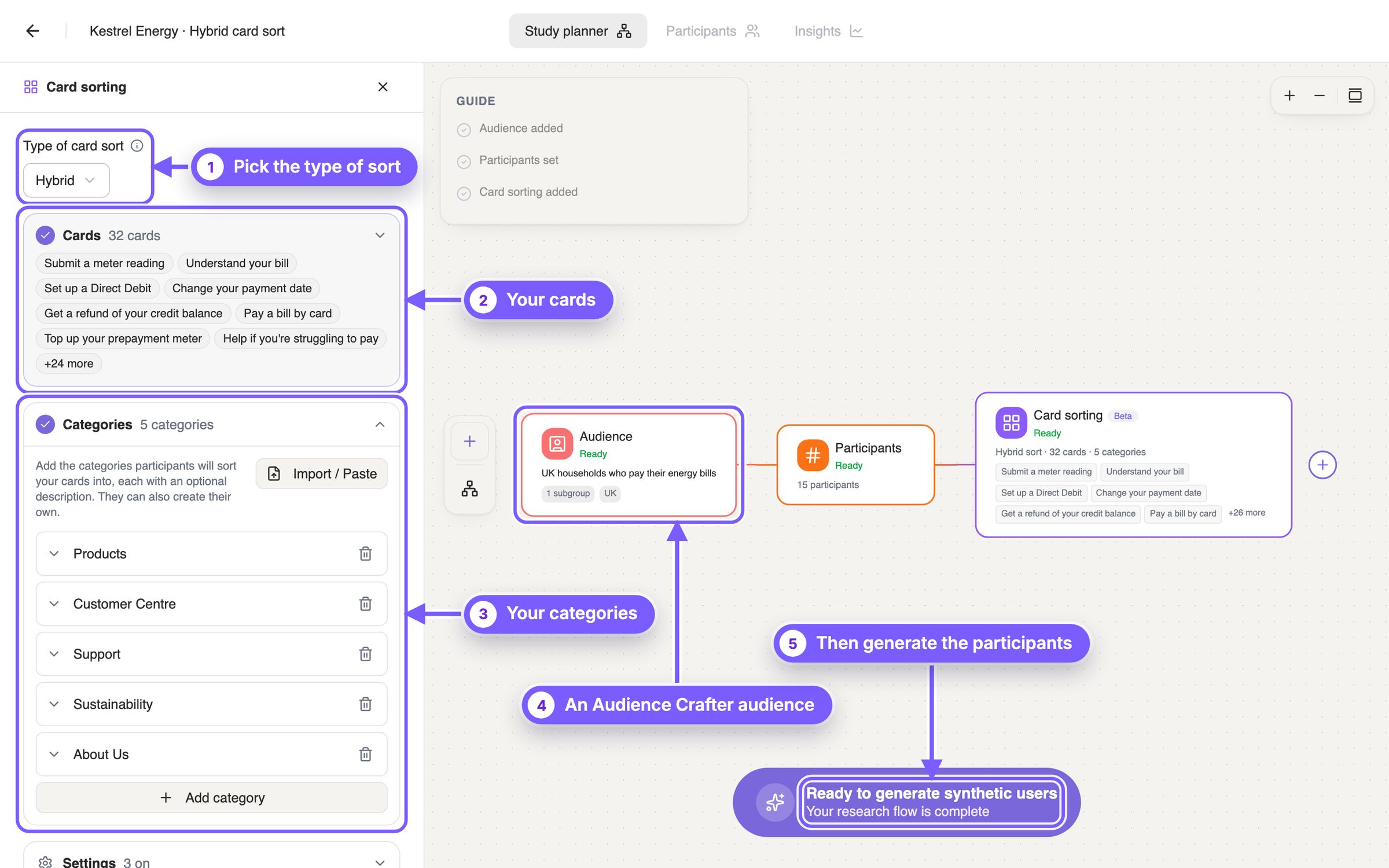
- 1Pick the type of sort. Open: participants make and name every group. Closed: they use only your categories. Hybrid: they start from your categories and add their own when a card fits none.
- 2Your cards. One topic per card, with an optional description participants see. Add them one at a time, or many at once with Import / Paste (next screenshot).
- 3Your categories. For a closed or hybrid sort, add the categories participants start from, with Add category or Import / Paste.
- 4An Audience Crafter audience. Any audience works up to 20 participants; 50 to 300 needs one built in the Audience Crafter.
- 5Then generate the participants. Once cards, categories and the number of participants are set, generate the participants. Each gets a full profile before the sort starts.
To add many cards at once, use Import / Paste in the Cards section.
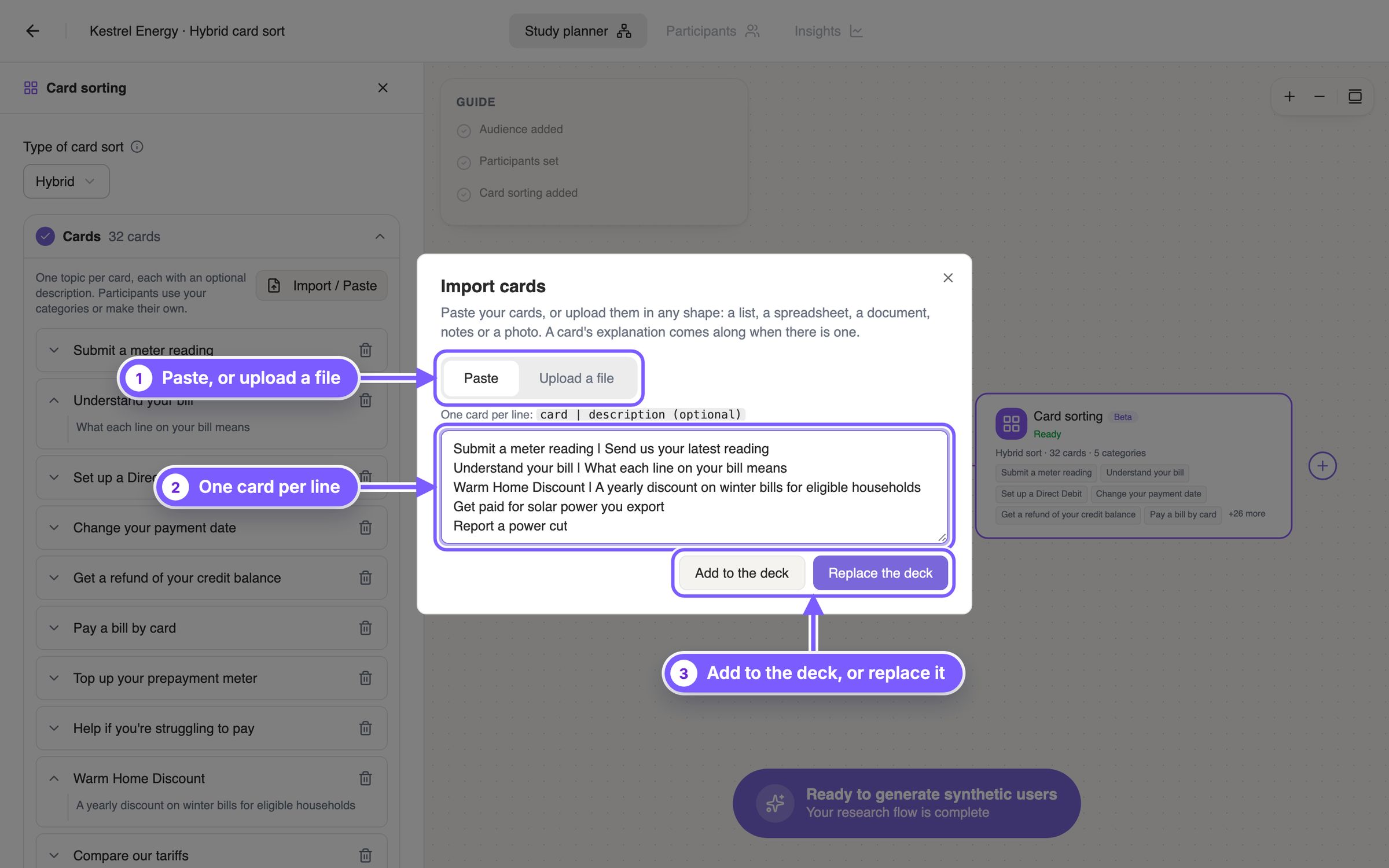
- 1Paste, or upload a file. Paste adds text exactly as written. Upload a file reads the cards out of a list, spreadsheet, document, notes or a photo, and shows them before anything is added.
- 2One card per line. Write each card on its own line. Text after a | becomes the card's description, which participants see.
- 3Add to the deck, or replace it. Add keeps the cards you have; Replace starts again. Categories import the same way.
Categories are the groups participants sort the cards into. In a closed sort they are the only places a card can go. In a hybrid sort they are the starting point, and participants add their own when a card fits none of them. An open sort has no categories: participants make and name every group.
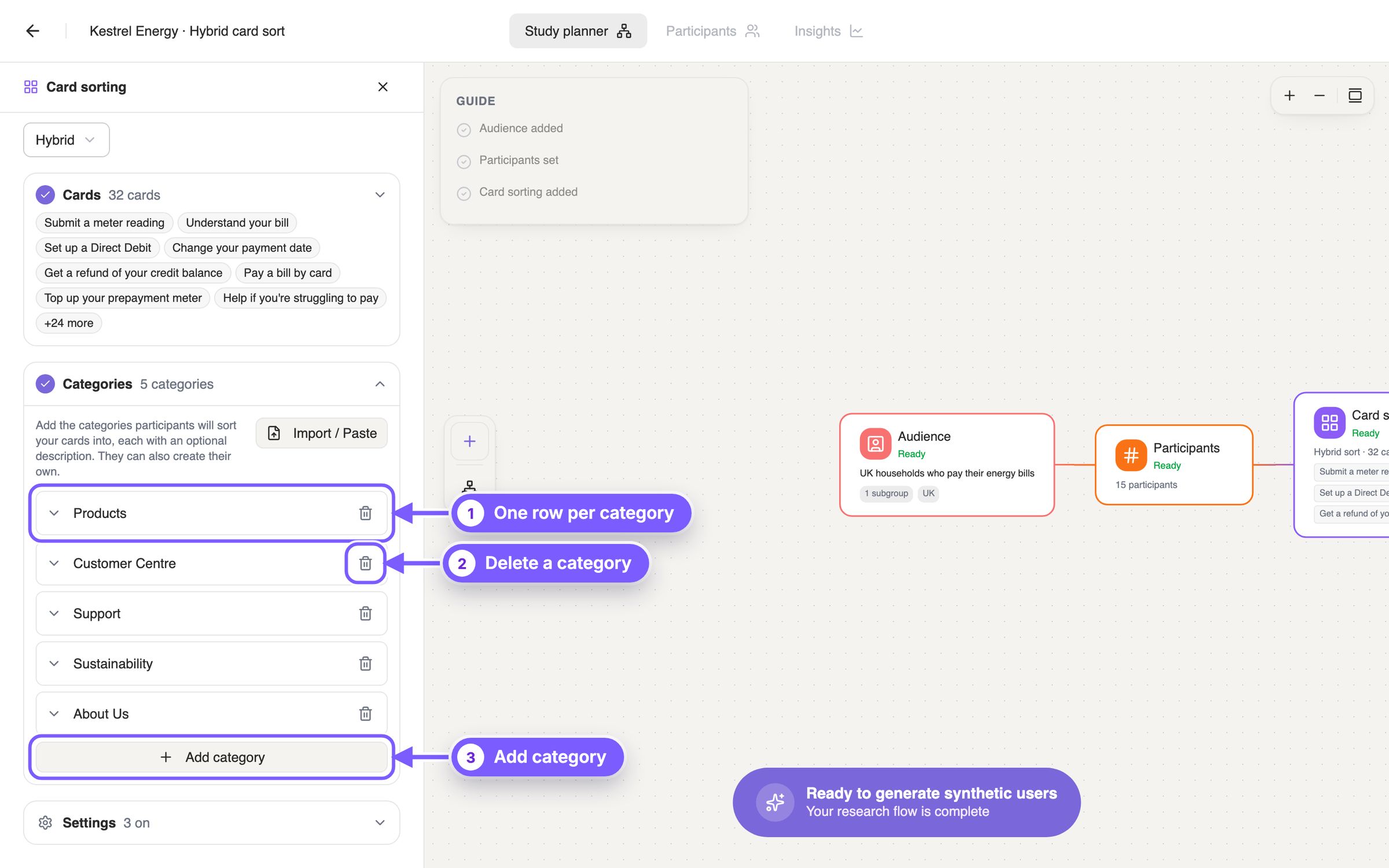
- 1One row per category. Type the name participants will see. They sort by the name alone, so make it say what belongs inside. The arrow on the left opens an optional description, which stays with your plan and isn't shown to participants.
- 2Delete a category. Removes it from the list. Cards already sorted in earlier runs aren't affected.
- 3Add category. Adds an empty row at the end, up to 30 categories. To add many at once, use Import / Paste above the list, one category per line, as with cards.
Settings
Every setting is numbered on the screenshot and explained below it. All the switches start on. At the end of every sort, participants also name the cards that were hardest to place and explain how they decided; those two questions are always asked, so they have no setting.
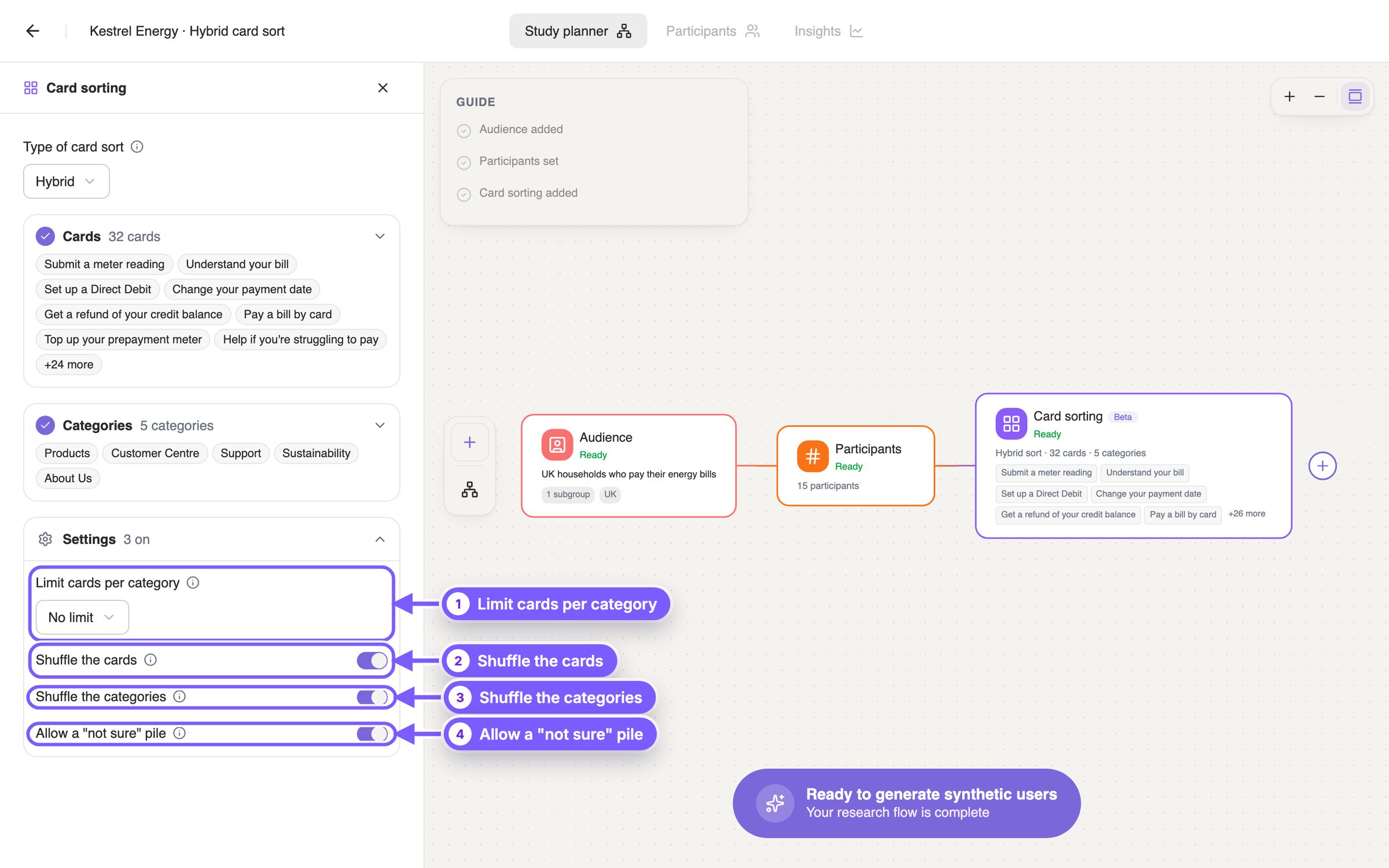
- 1Limit cards per category. Caps how many cards each of your categories can hold, so none becomes a catch-all. Closed and hybrid sorts only; no limit by default.
- 2Shuffle the cards. Each participant gets the deck in a different order, so the first cards don't shape every sort.
- 3Shuffle the categories. Each participant sees your categories in a different order, so the first one listed doesn't collect more cards. Closed and hybrid sorts only.
- 4Allow a "not sure" pile. Participants can set aside cards they don't understand or that fit no category, and explain why. Those cards are counted separately: they show content with no obvious home. Off: every card goes into a category.
Then generate the participants and click Run Card Sort. While it runs, each participant sorts every card and gives a reason for each placement, usually with a confidence score, then tidies up their groups. Each participant's session is charged once, when it finishes, and the results appear when everyone has finished.
How to read the results
The results are under Insights, in three tabs: Responses, each participant's sort; Card sort summary, everything added up; and Report. Where a percentage isn't obvious, the list under its screenshot says how it's calculated.
Responses: each participant's sort
One row per participant. Open one to see their groups, the cards they weren't sure about, the ones they found hardest, and how they decided. Read a few sorts in full before the numbers: they show the reasoning the summary adds up.
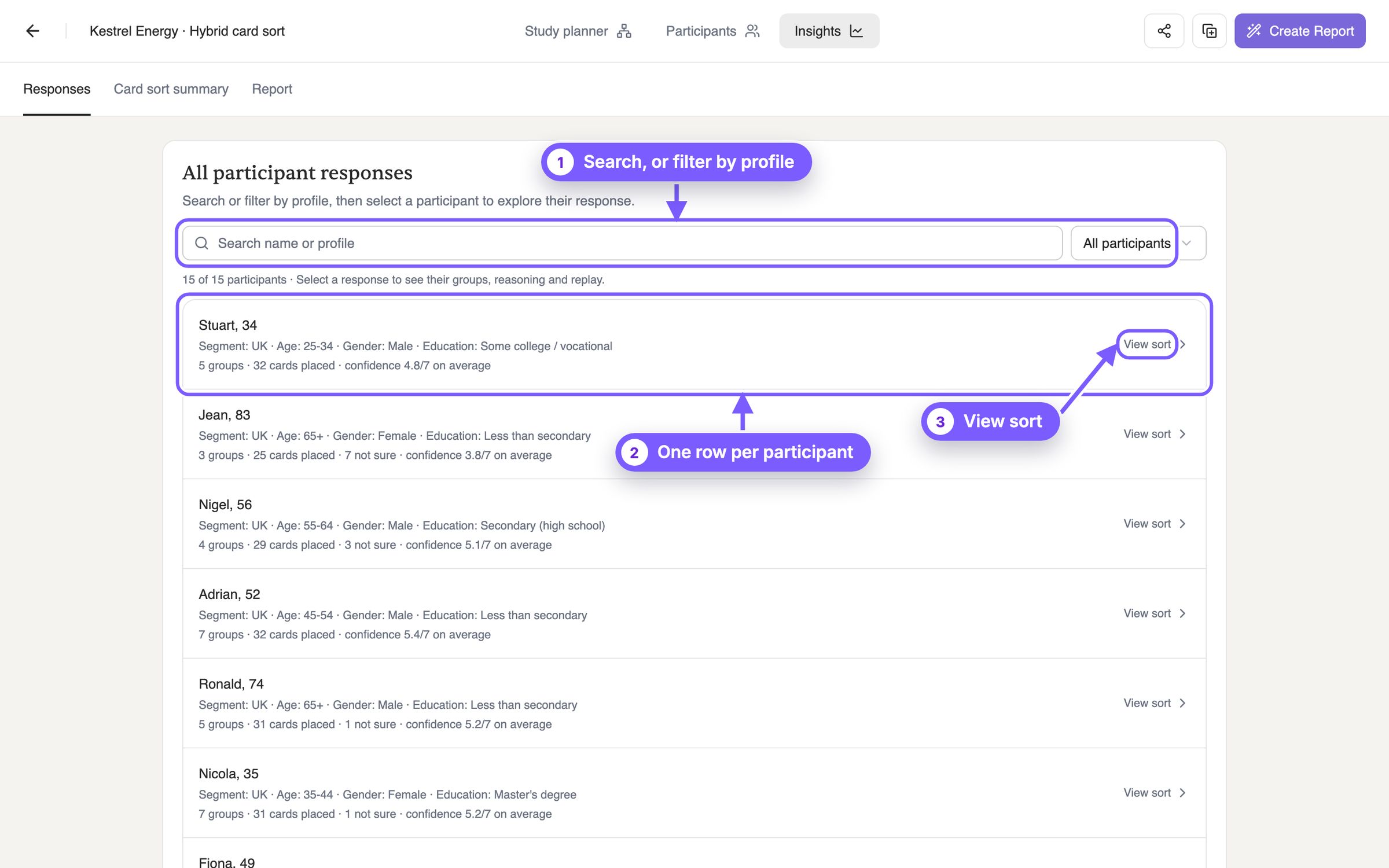
- 1Search, or filter by profile. Find participants by name or profile, or filter them by a profile detail such as age.
- 2One row per participant. How many groups they used, how many cards they placed, how many they weren't sure about, and their average confidence out of 7.
- 3View sort. Opens that participant's whole sort.
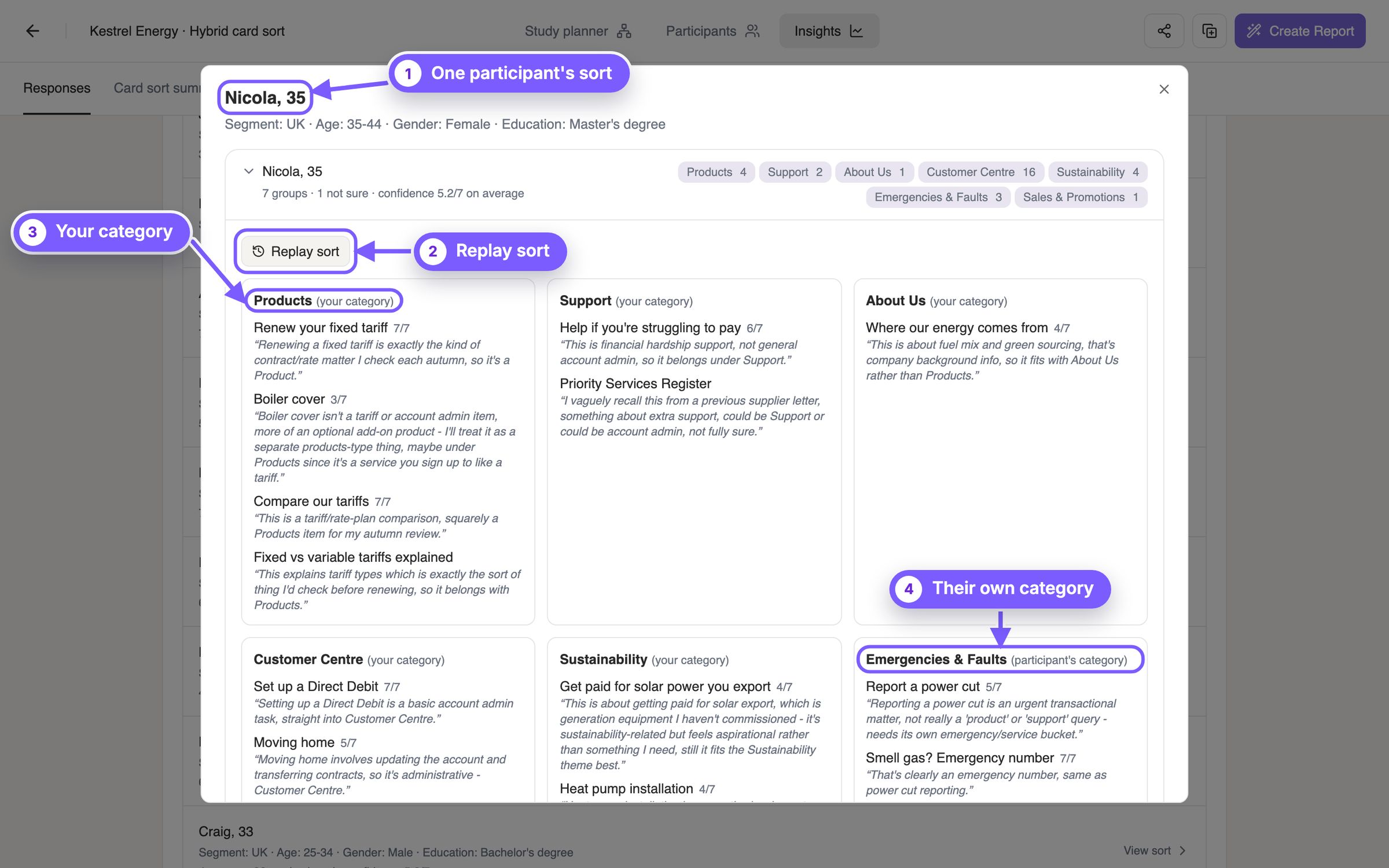
- 1One participant's sort. Their profile, their groups with the number of cards in each, cards they weren't sure about, and their average confidence.
- 2Replay sort. Plays the sort back move by move, in the order they made it.
- 3Your category. Marked (your category): one you gave them. Each card shows how sure they were of its place, out of 7, when they gave a score, and their reason.
- 4Their own category. Marked (participant's category): a group they made because a card fitted none of yours. Groups like these point to a section your structure is missing.
The summary tiles
Three tiles give the overall picture: how alike people filled each category, how many categories they used, and which cards they placed least alike. Below them, four views read the sort from different sides. Agreement compares category names, so a group participants made counts once two people made it under the same name: merge groups that mean the same before you read it (see Categories, below).
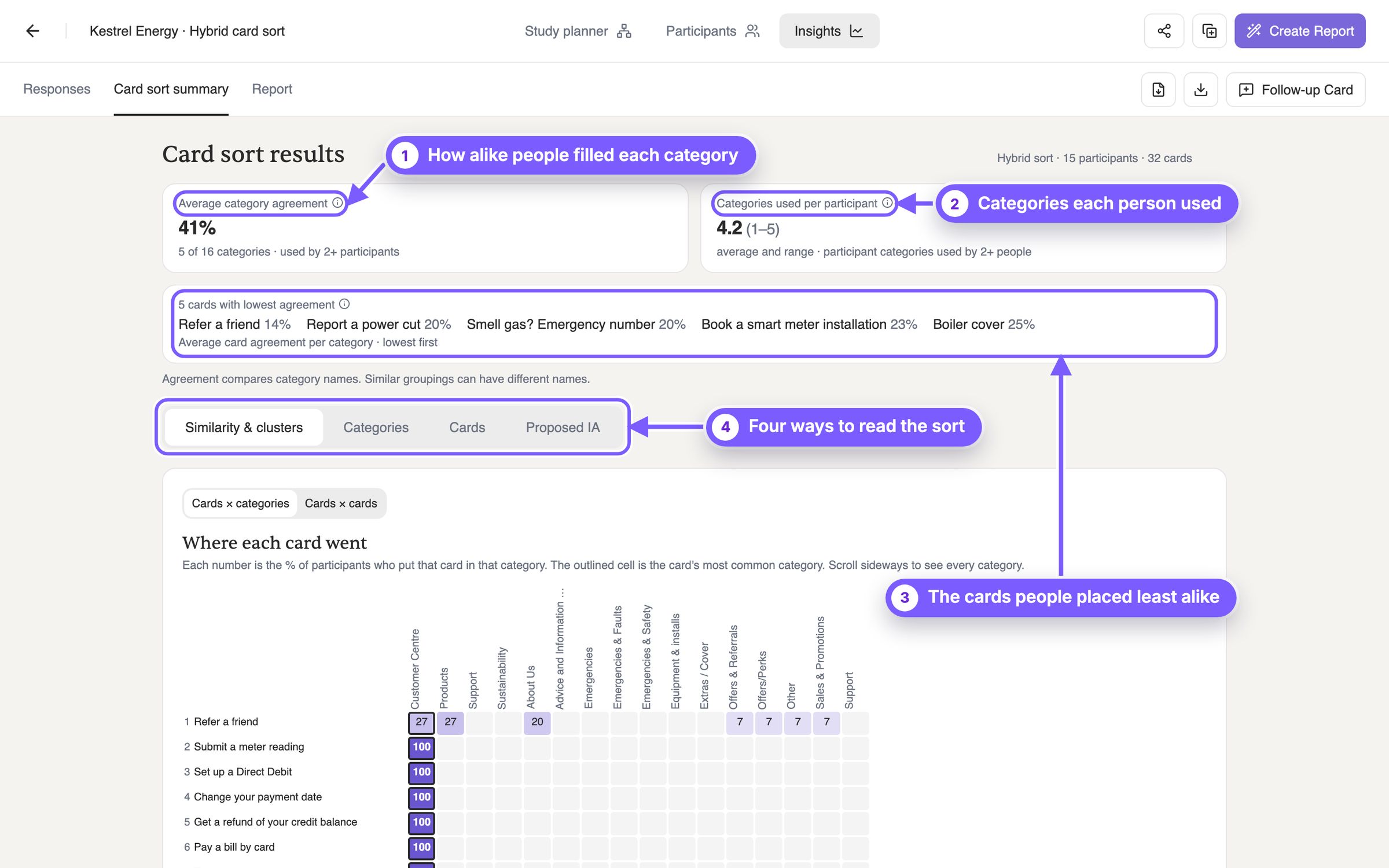
- 1How alike people filled each category. Average category agreement. For each category, take every card put in it, divide the participants who put it there by everyone who finished, and average those shares; then average across categories. Open and hybrid sorts count only categories at least two participants used. High means people share one idea of each category; low means the categories overlap or are unclear.
- 2Categories each person used. How many categories each participant used, averaged over everyone who finished. Your categories always count; a group someone made counts only when another participant made one with the same name. Close to your total means every category earns its place; well below means some go unused.
- 3The cards people placed least alike. The cards with the lowest card agreement, lowest first. Card agreement is the average share of participants across every category the card went to: a card everyone put in the same place scores highest, one spread evenly over four categories scores a quarter of that. These cards have no obvious home: start your review here.
- 4Four ways to read the sort. Similarity & clusters, Categories, Cards and Proposed IA, each covered below.
Similarity & clusters
The matrix shows where each card went. Below it, How the cards cluster joins the cards into a tree by how often people grouped them together; the similarity cut decides where the tree splits into groups.
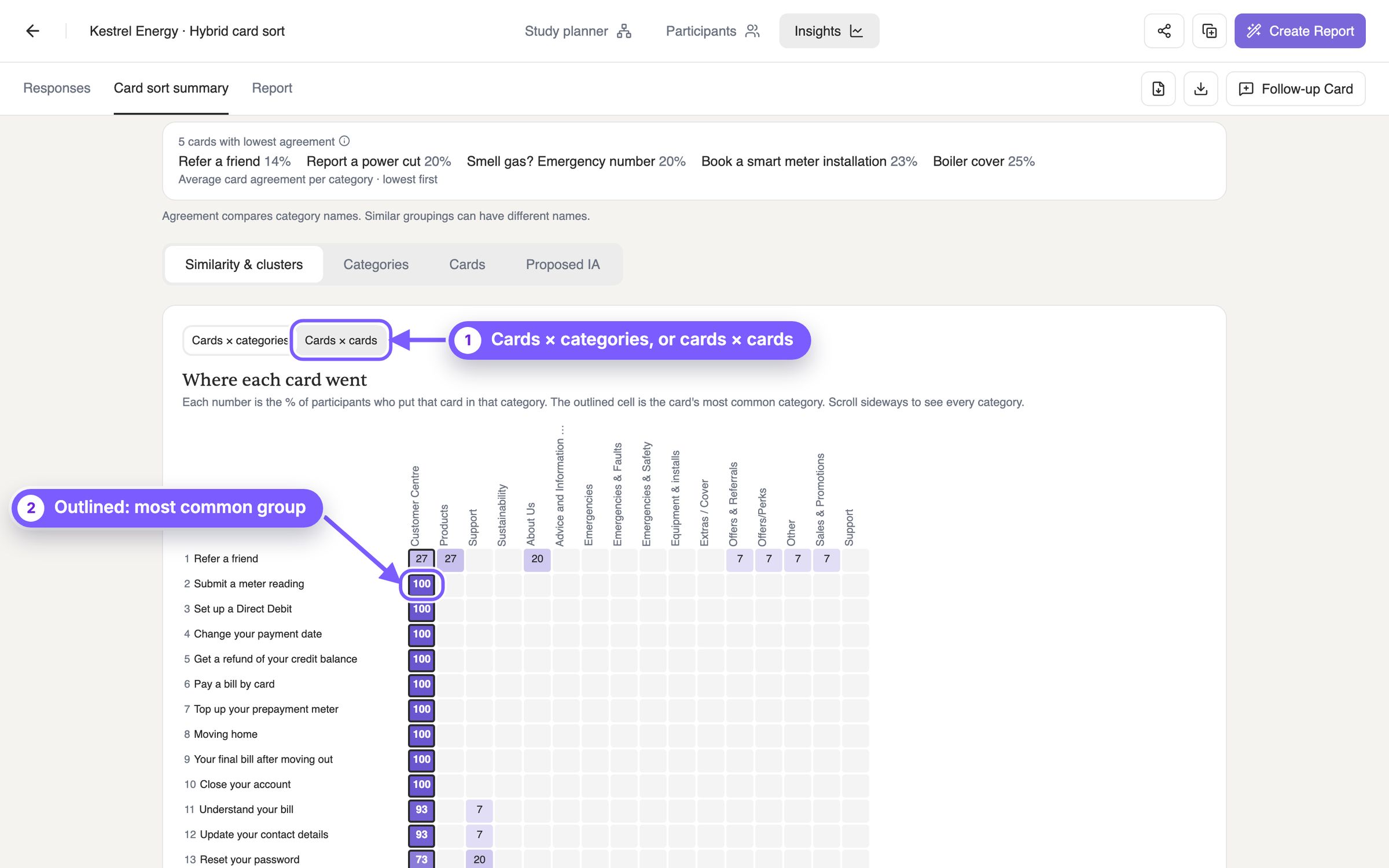
- 1Cards × categories, or cards × cards. Cards × categories, shown here, puts every card against every category, yours first, then the groups participants made. Cards × cards puts every card against every other card: each cell is the share of participants who put both in the same group, out of those who placed both.
- 2Outlined: most common group. Each cell is the share of everyone who finished who put that card in that category; people who left it on the not sure pile still count. The outlined cell is the card's most common category. One strong cell is a clear home; a row spread across many cells is a card people disagree on.
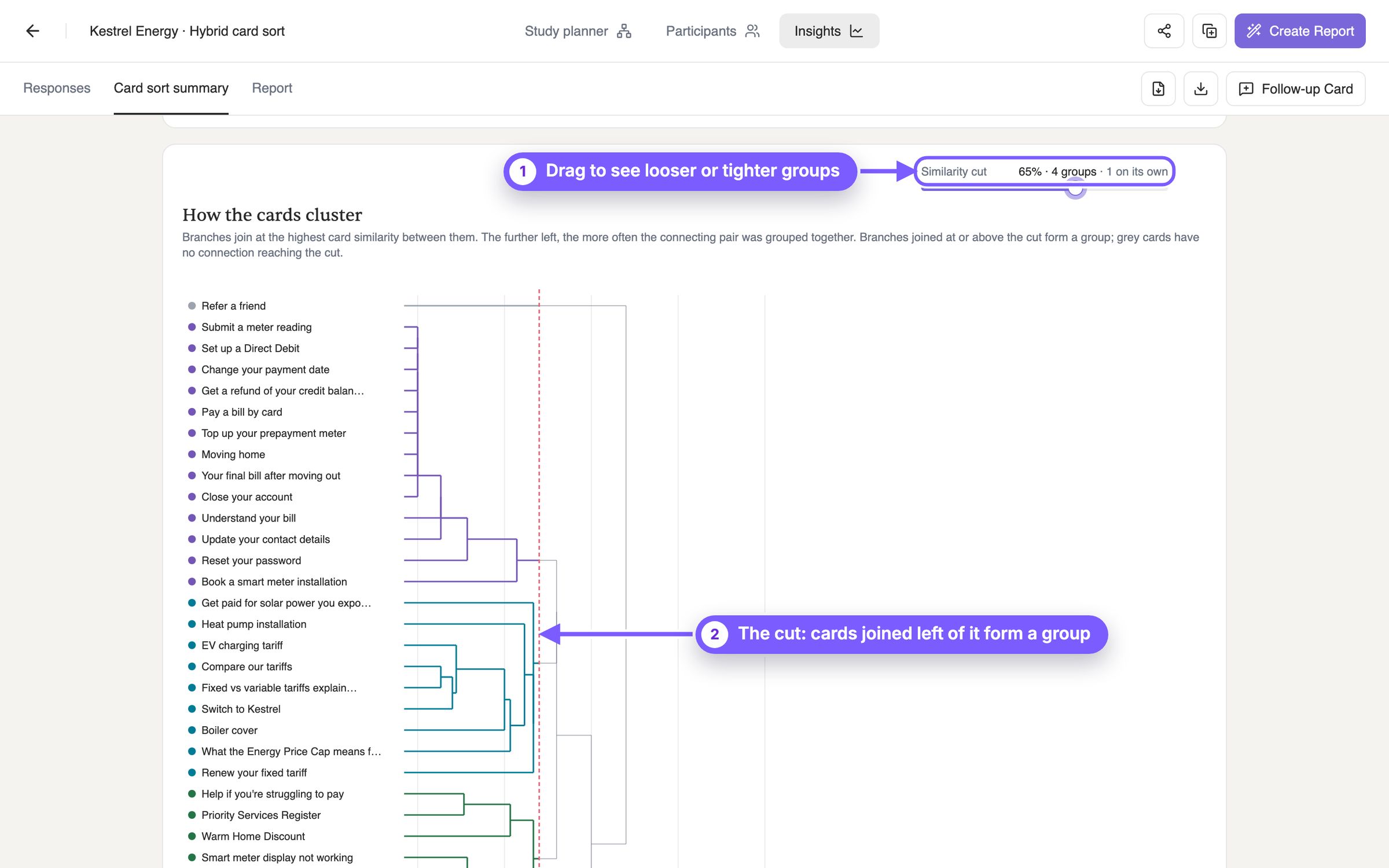
- 1Drag to see looser or tighter groups. Similarity is the share of participants who put two cards in the same group. The Similarity cut is a threshold on it: cards linked at or above the cut form a group. Lower it for fewer, bigger groups; raise it for more, smaller ones.
- 2The cut: cards joined left of it form a group. The most similar pair of cards joins first, then the next, and a branch joins at the similarity of the strongest pair linking it, so the further left, the stronger the link. Everything joined left of the dashed line is one group, in one colour. Grey cards have no link that reaches the cut.
Categories
Every category, yours and the ones participants made, with how many people used it, how much they agreed on its cards, and which cards went in. Low agreement on one of yours means its name or scope is unclear. Groups that several people made under different names are usually a section you're missing: merge them to see how many people really made them.
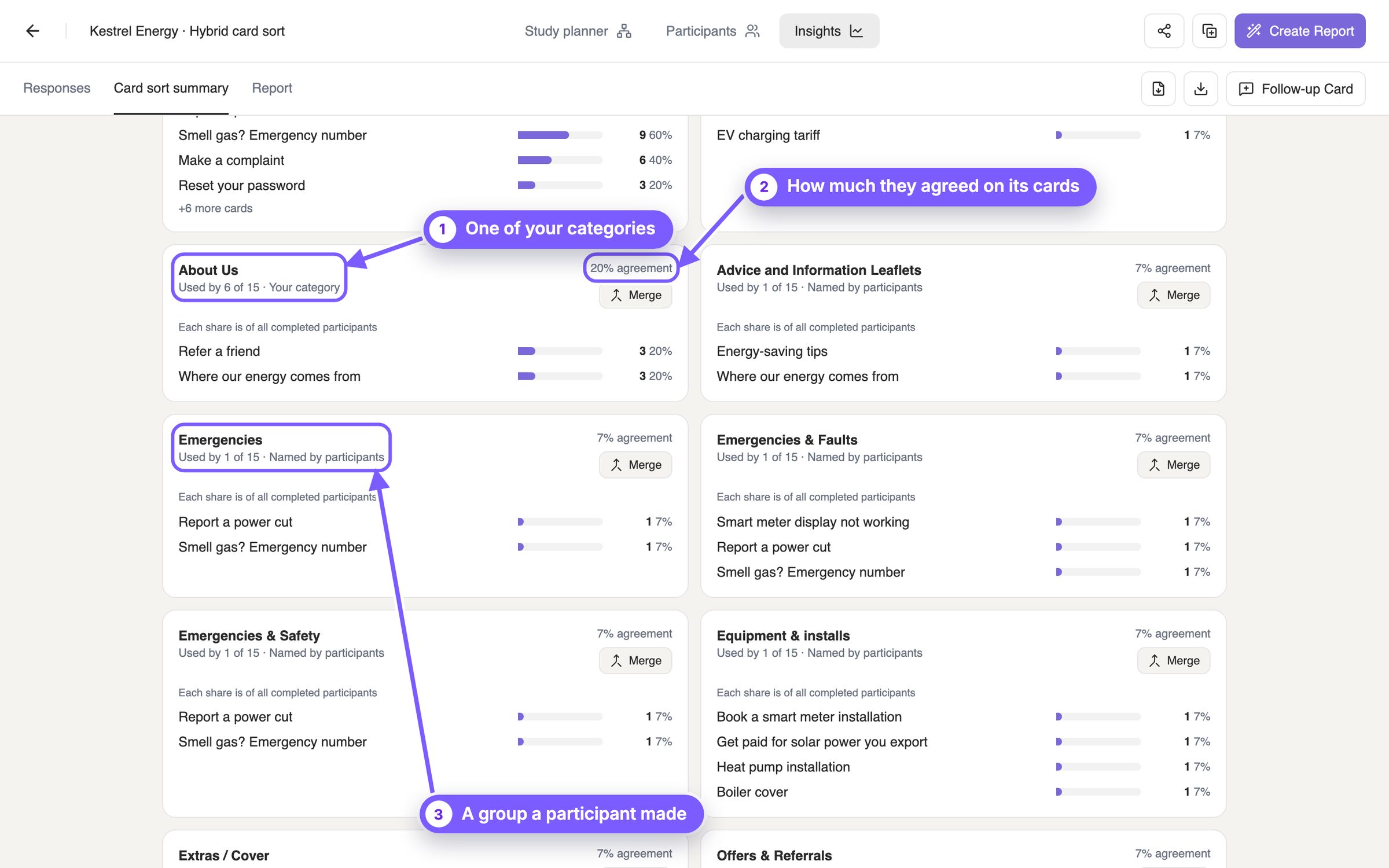
- 1One of your categories. Marked Your category, with how many participants used it and which cards they put in it. A category few people used, or used for unrelated cards, is a label to rethink.
- 2How much they agreed on its cards. Category agreement. For each card put here, the participants who put it here divided by everyone who finished, averaged over the category's cards. People who never used the category still count, so a category few people used, or used for different cards, scores low. The lowest of your categories are the least clear.
- 3A group a participant made. Marked Named by participants. When several people make the same group under different names, merge them (below) and it may be a section you're missing.
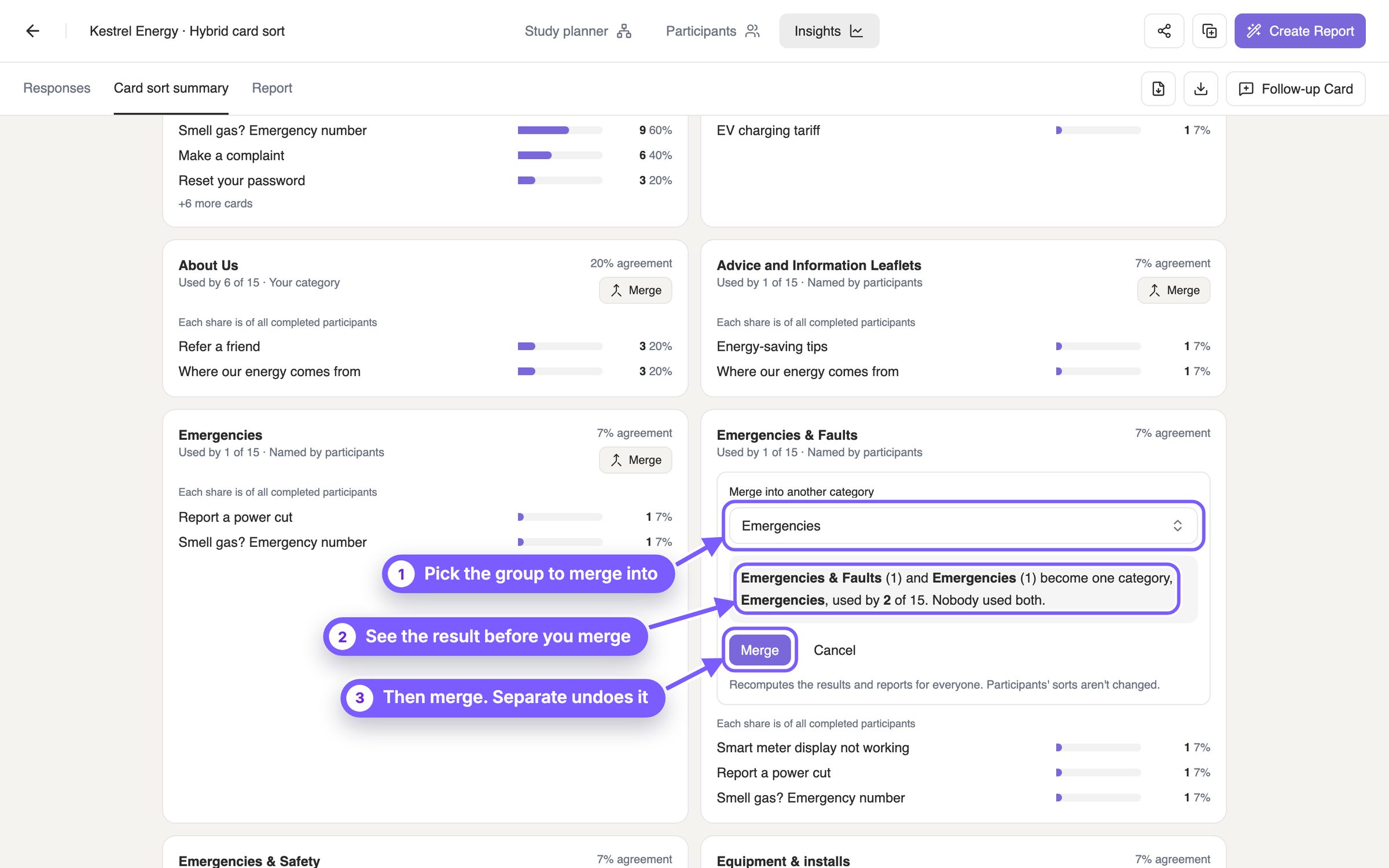
- 1Pick the group to merge into. Click Merge on a group and pick the one it belongs with. The group you pick keeps its name.
- 2See the result before you merge. The preview shows the merged group and how many people it covers. Anyone who used both counts once.
- 3Then merge. Separate undoes it. Merging recalculates every agreement number with the two names counted as one; similarity doesn't change, because it ignores names. Participants' own sorts don't change. A merged group lists what it includes, each with a Separate button.
Cards
One row per card, lowest agreement first. Open a card to see every category it went to and each participant's reason. A card split between two categories may need a clearer name, or a place in both.
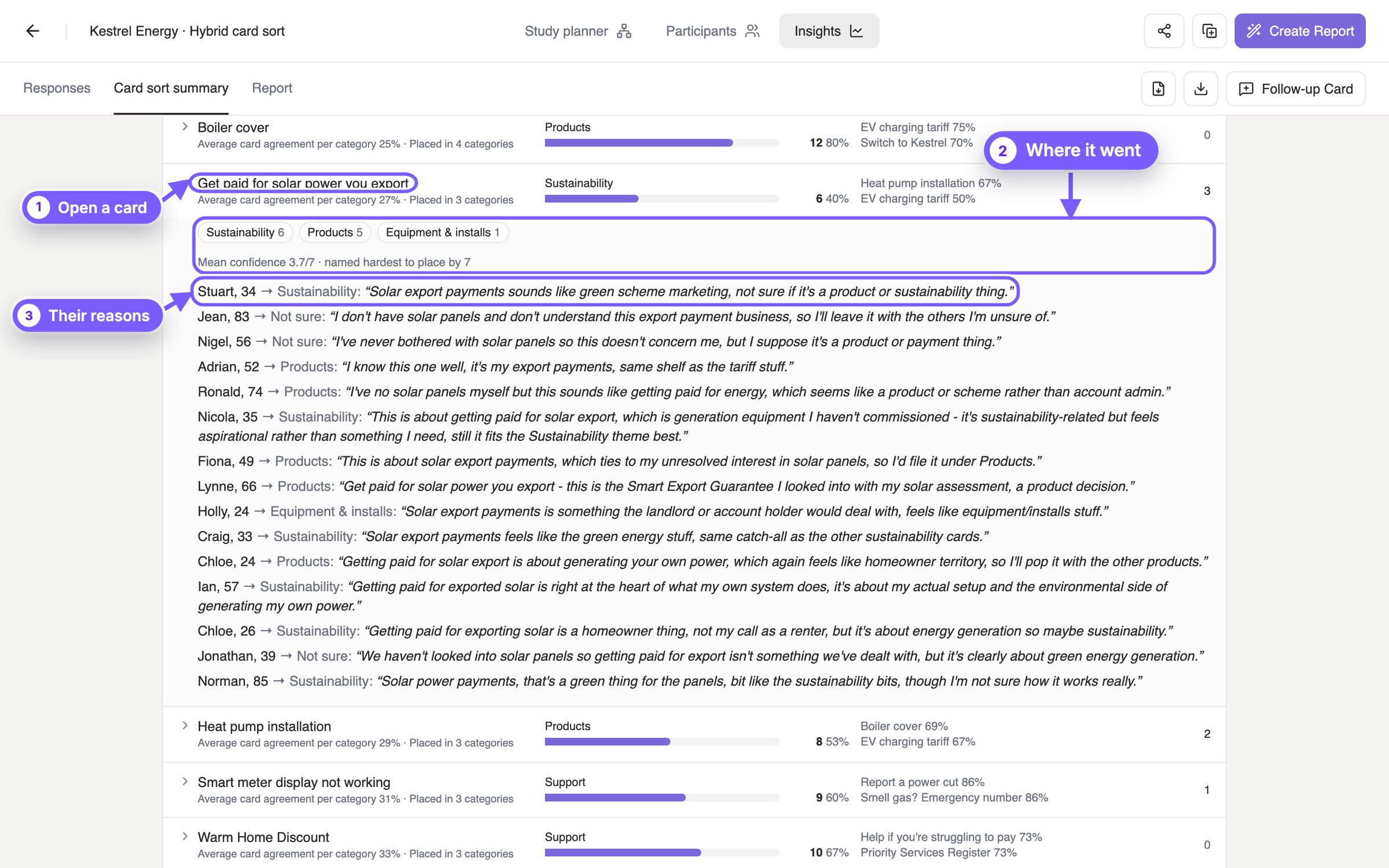
- 1Open a card. One row per card: its card agreement (explained in the summary tiles), how many categories it went to, where it was placed most, the cards it was grouped with most, and how many weren't sure. Click a row to open it.
- 2Where it went. Every category it went to and how many chose each, its average confidence and how many named it hardest to place. A card split between two categories may need a clearer name, or a place in both.
- 3Their reasons. Each participant's choice and reason, in their own words. Read these to learn why a card is split, not just that it is.
Proposed IA
Turns the groups into a structure: sections of cards people kept together, each named after the category they used most. Try a few similarity cuts, rename the sections, and use it as the starting point for a tree test.
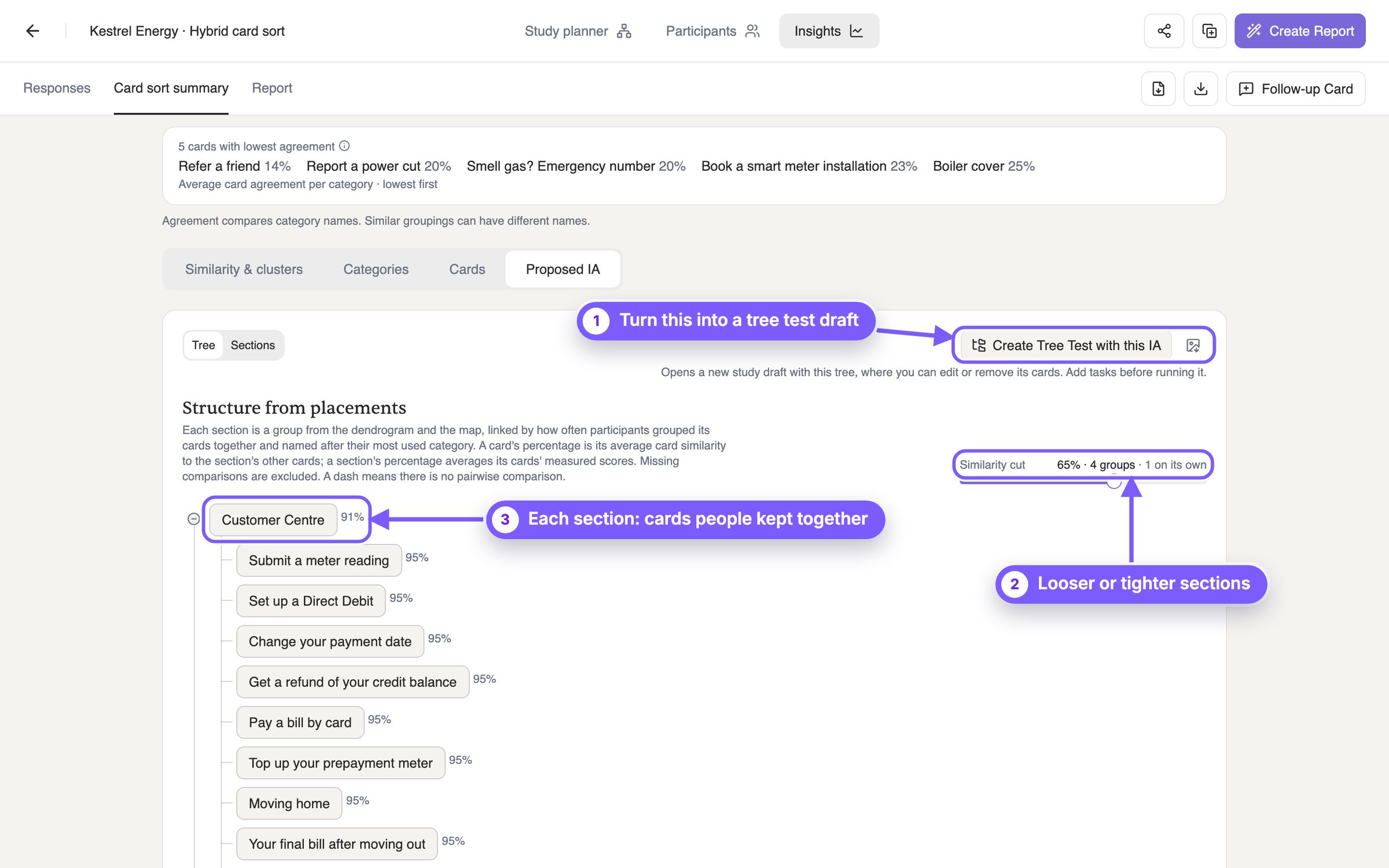
- 1Turn this into a tree test draft. Create Tree Test with this IA opens a tree test draft with this structure as its tree. Cards left on their own at the cut aren't included; add them by hand if you want them tested.
- 2Looser or tighter sections. The Similarity cut sets how often cards must have been grouped together to share a section. In open and hybrid sorts, try a few cuts: the right one gives sections that are neither one big bucket nor single cards.
- 3Each section: cards people kept together. Each section holds cards people grouped together, named after the category they used most for those cards. A card's percentage is its average similarity to the other cards in its section; a section's percentage averages its cards'. Rename sections before you test them.
Tips and common mistakes
- Write cards in your users' words. Name the thing people come to do or find, not your team's term for it.
- Don't repeat category words on cards. A card that shares a word with a category gets matched on the word, not the meaning.
- Make categories distinct. Two categories that could hold the same cards split people's choices and lower agreement on both.
- One idea per card. Keep descriptions short and neutral; they explain the card, they don't hint at where it goes.
- Pick the type for the question. Open to learn how people think, closed to test the categories you have, hybrid to do both.
- Merge before you read agreement. The same group under different names lowers agreement until you merge it.
- Don't stop at one cut. Proposed IA changes with the similarity cut; look at a few before you settle on sections.
- A split card is a finding, not a failure. Read the reasons: it may need a new name, or a link from a second place.
- Choose the right audience. Build it from the people who will use the structure, not from everyone.
Next steps
- Test the structure. Create Tree Test with this IA, in Proposed IA, opens a tree test draft with the sort's sections as its menu, the same audience and the same number of participants. A card sort shows how people group things; a tree test shows whether they can find them. See How to run a tree test.
- Place one more card. Follow-up Card asks every participant who finished to place a new card among their own groups.
- Share the results. Create a Report with the charts from your results and download it as a PDF or PowerPoint file. The raw results export as CSV from the summary tab.